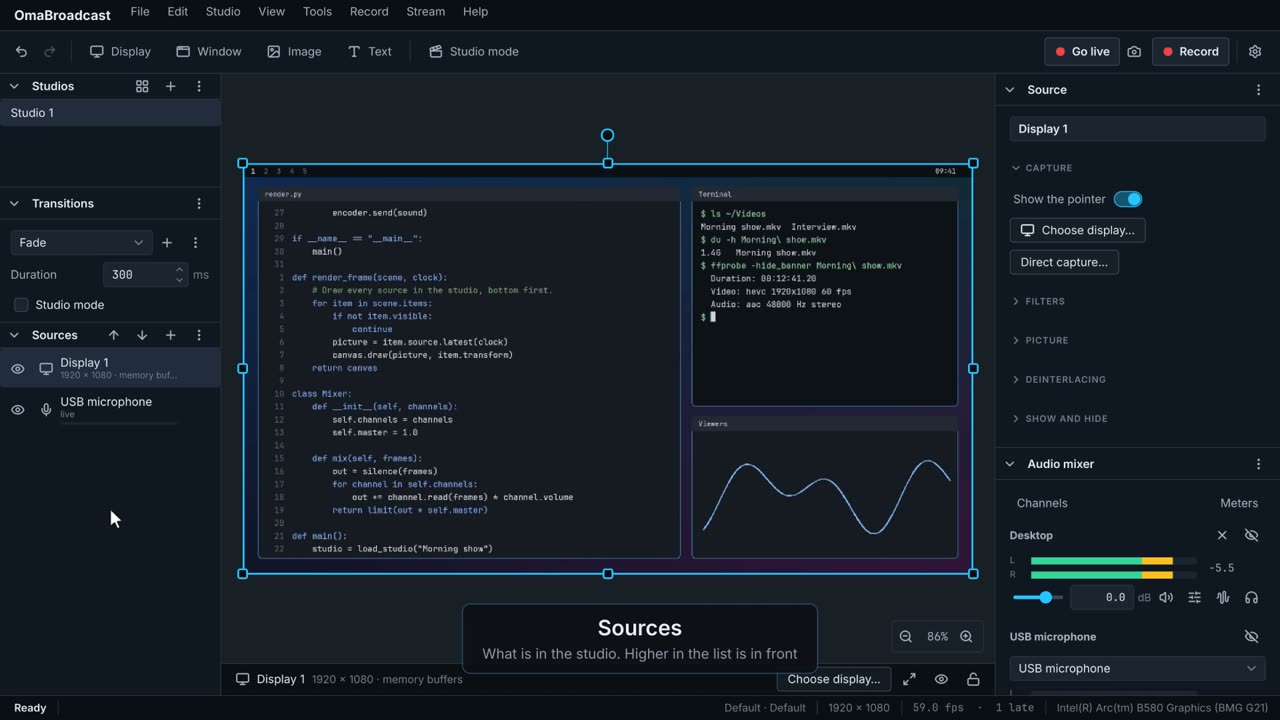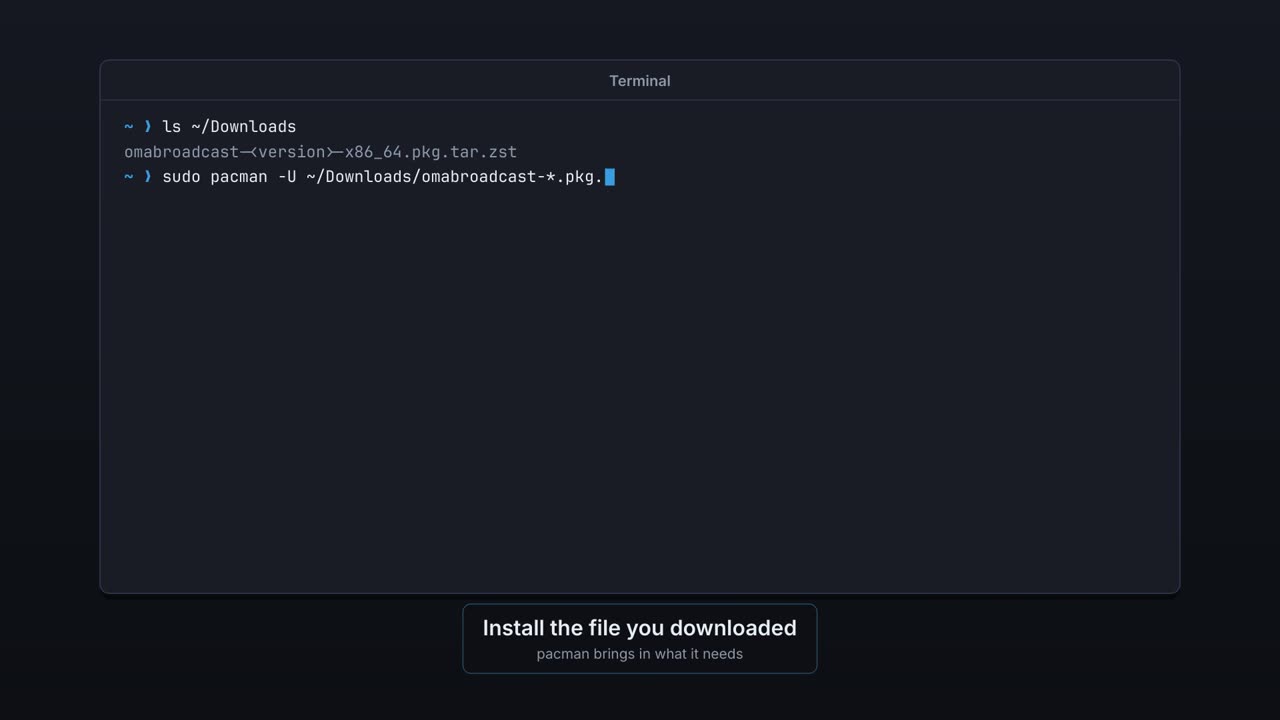
Installing OmaBroadcast
Download the package, install it, open it.
OmaBroadcast records and streams live video on Omarchy: your screen, cameras, phones, media and sound, arranged in studios you switch between. Start with the walk-throughs, each with a short film; the rest of the guide is here when you need it.
What it is and where things are.
Each one takes a few minutes. In the app, the same walk-throughs point at the real controls as you go: press F1.
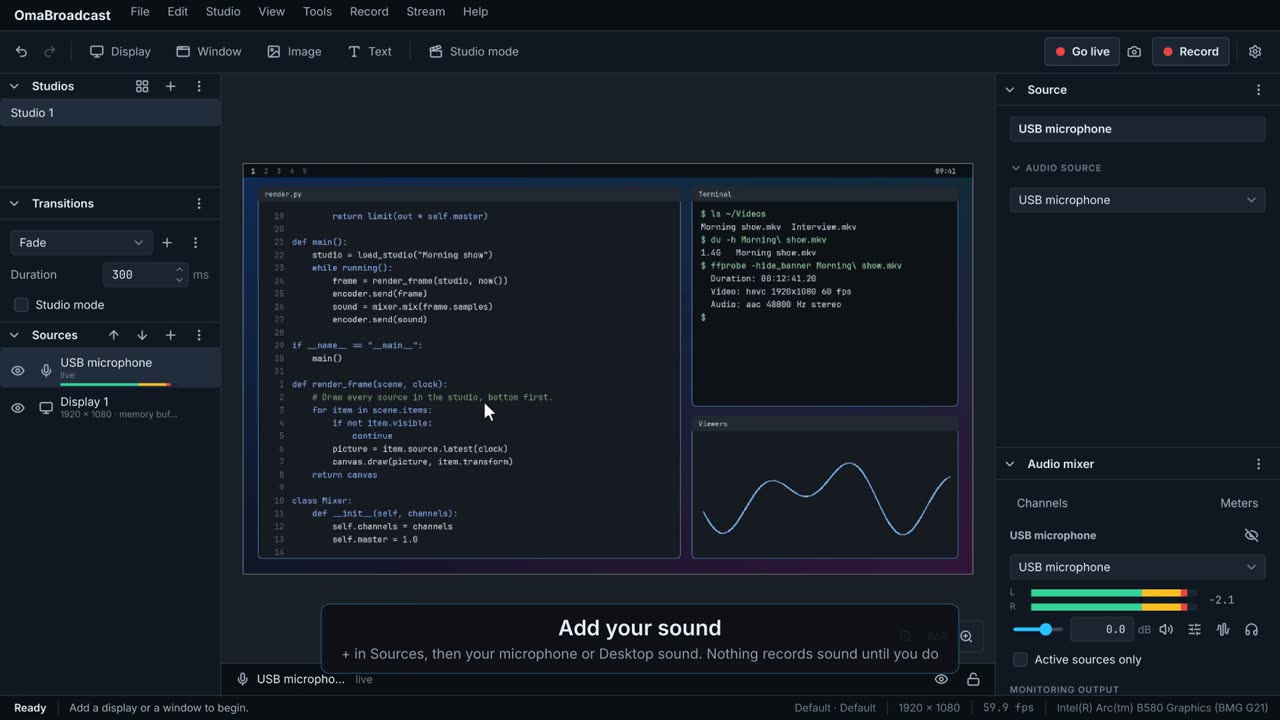 0:35
Record your screen with your voice and save it as a video file. Nothing goes online.
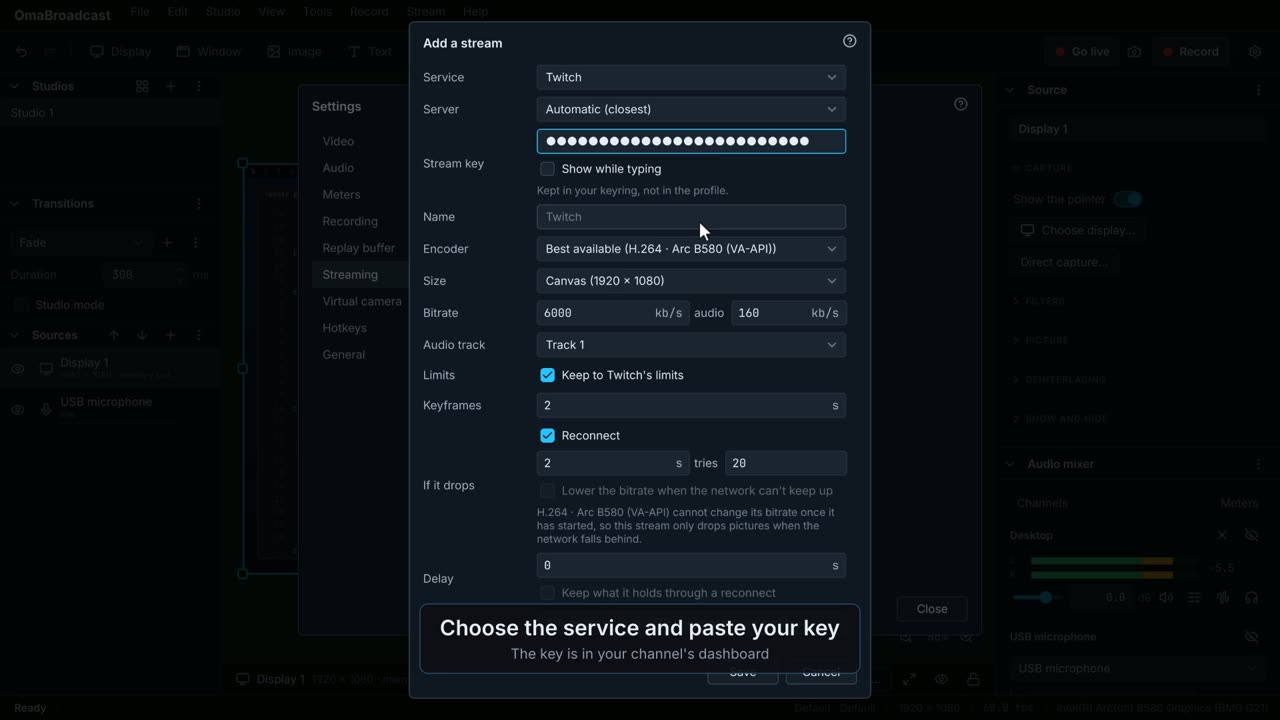 0:31
Connect your channel with its stream key, then start and end a live stream.
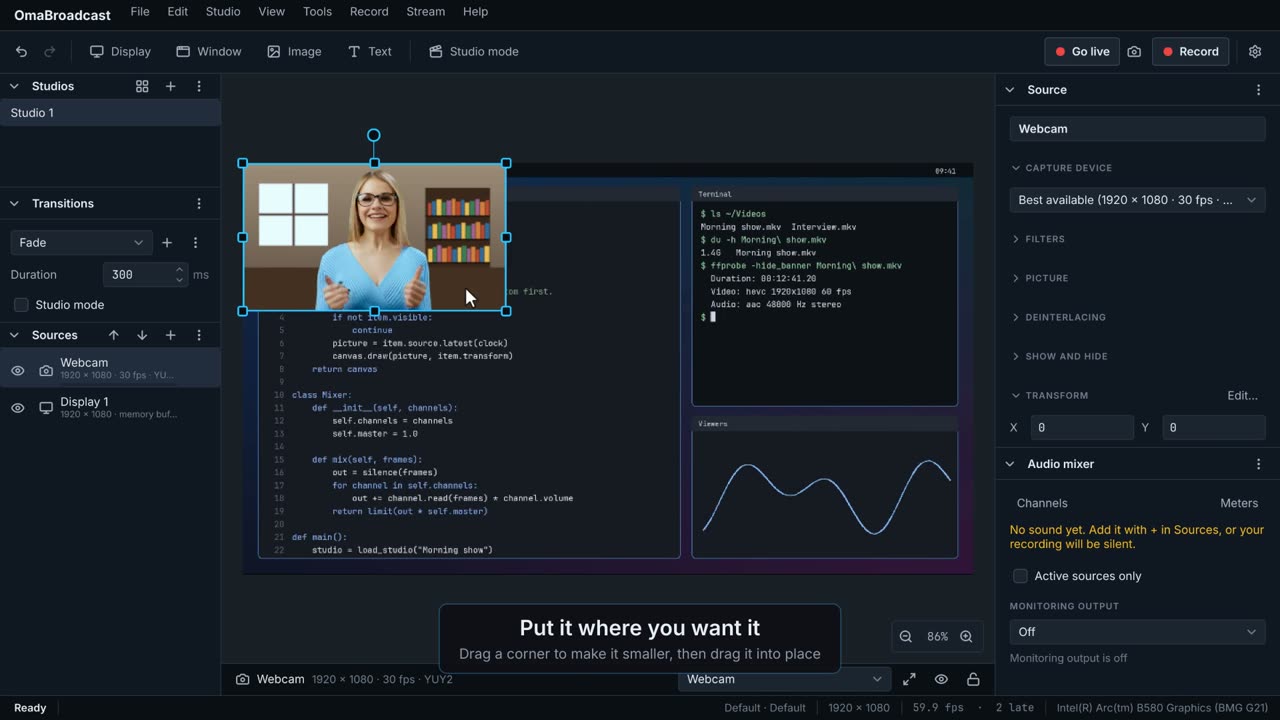 0:32
Put yourself in the picture, and make your voice clear and steady.
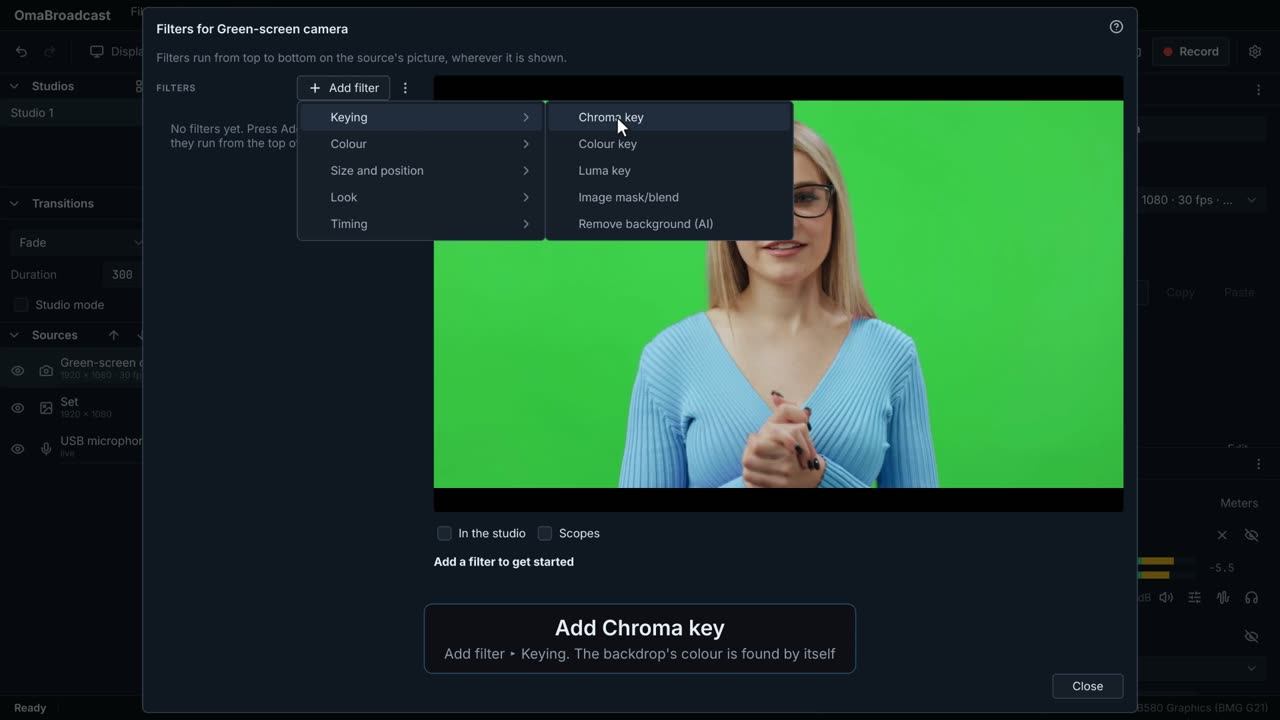 0:23
Take out the backdrop behind you, and put yourself over a picture, a game or anything else.
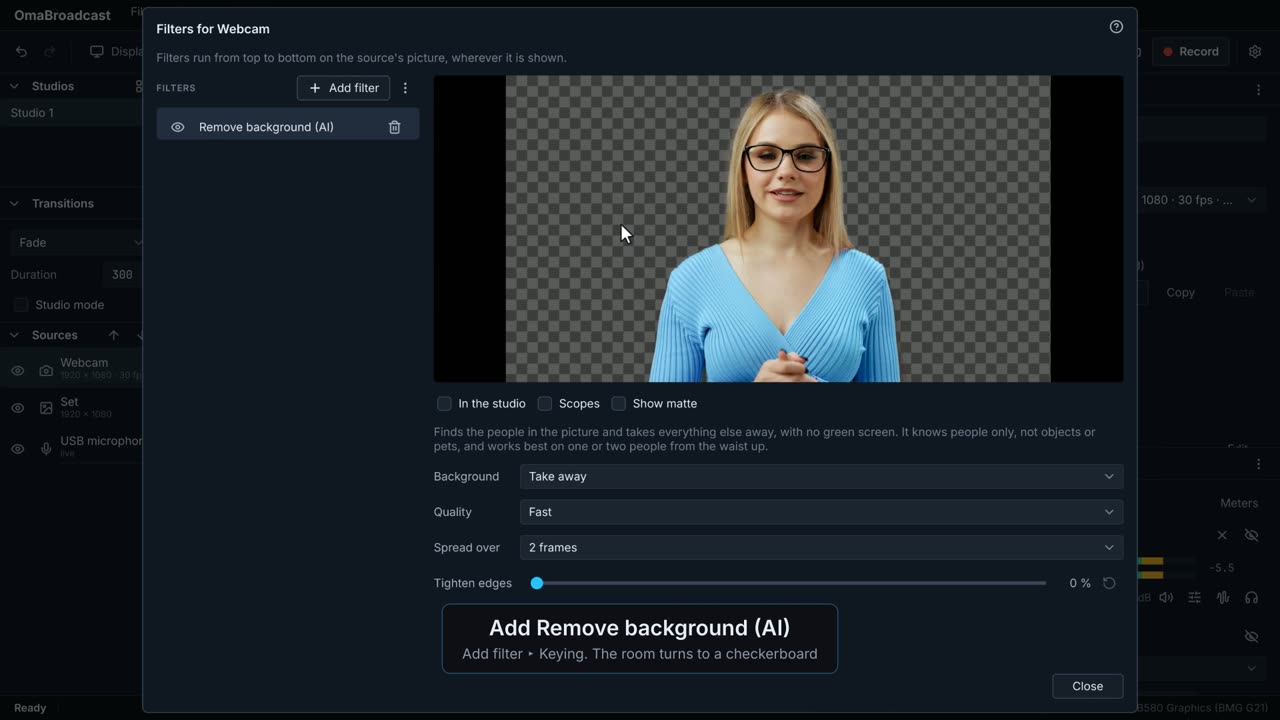 0:27
Take away the room behind you with no green screen at all, and put yourself over a picture, a game or anything else.
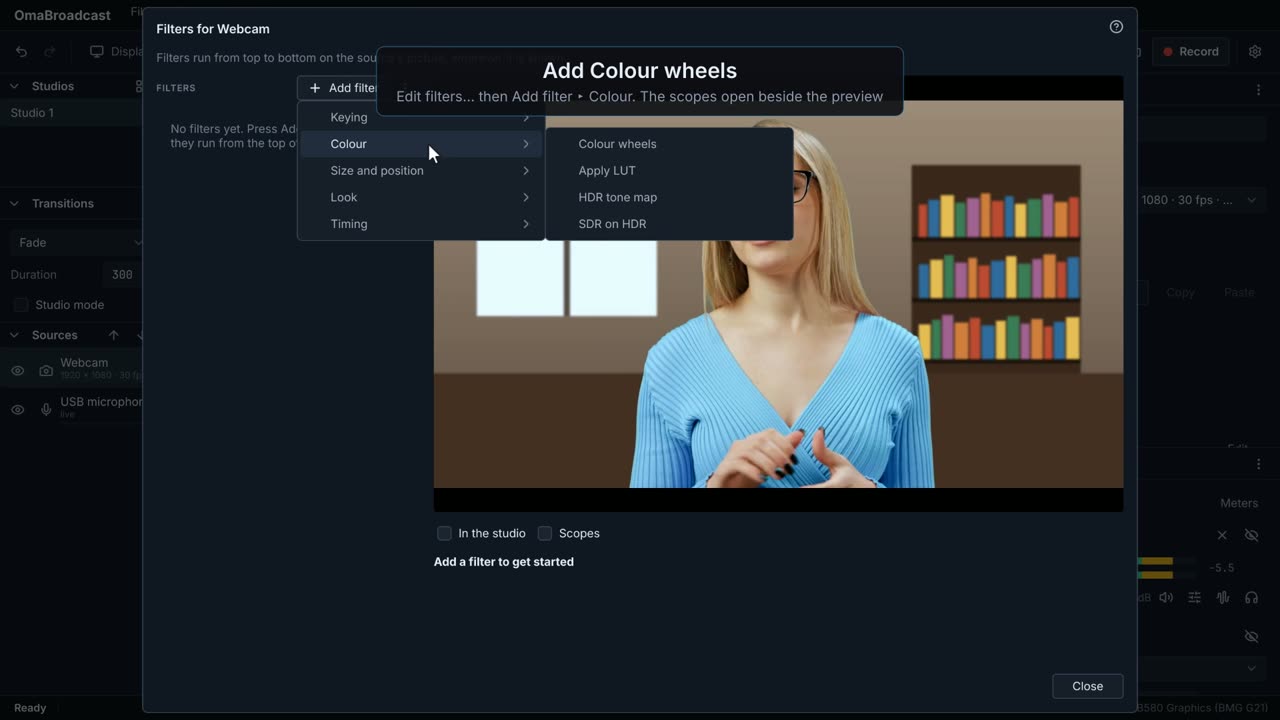 0:25
Warm the shadows, cool the highlights, set black and white where they belong, watching the scopes instead of guessing by eye.
 0:22
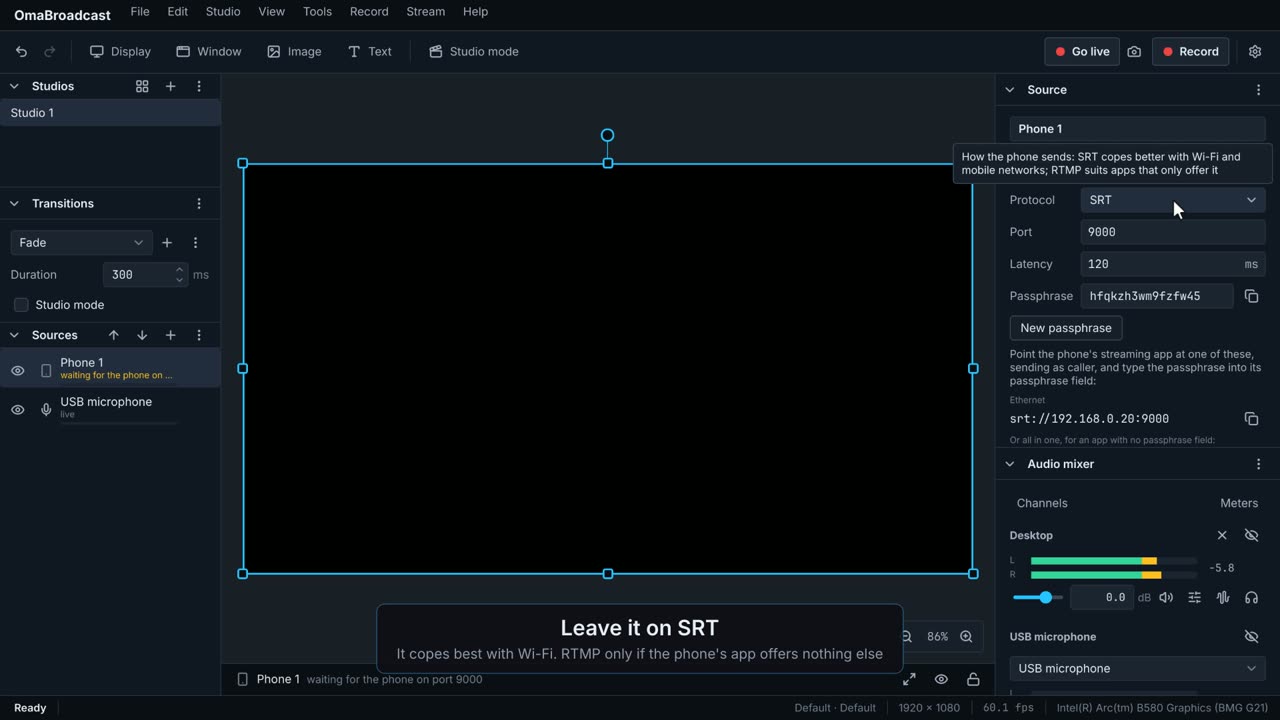
Send your phone's camera and microphone to this computer, over Wi-Fi or a USB cable, as one more source.
 0:26
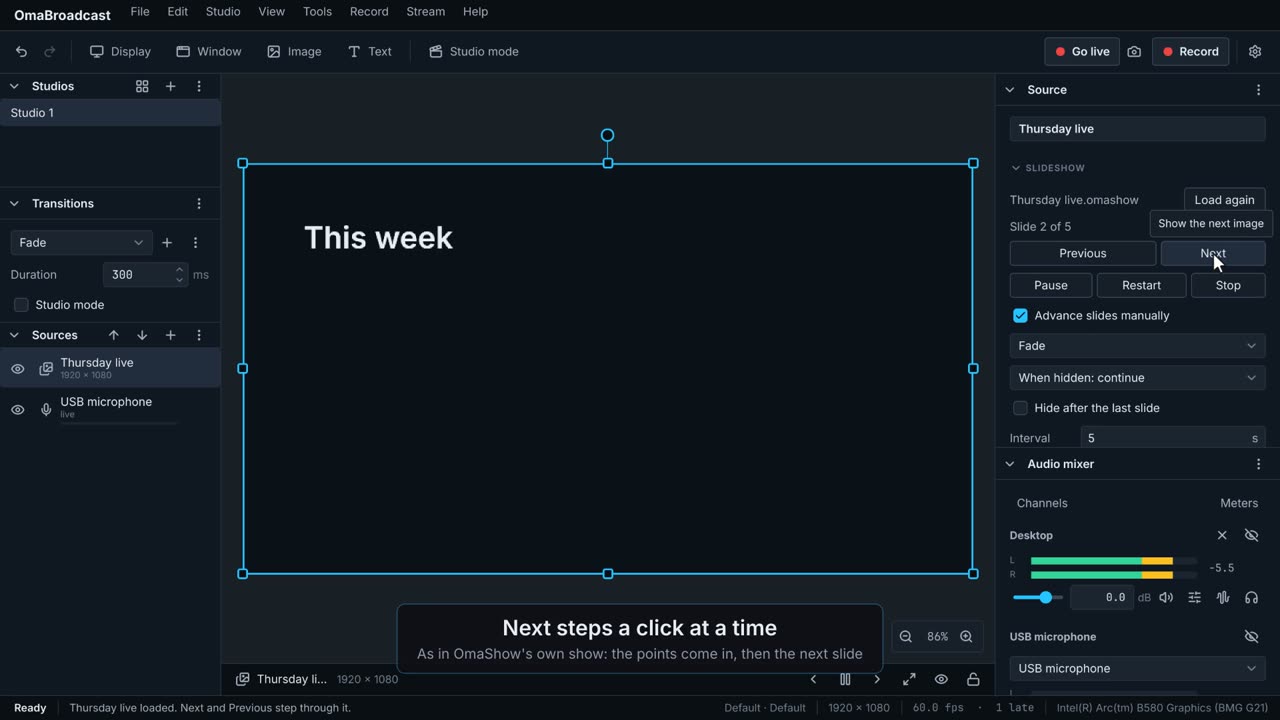
Put an OmaShow deck in the picture and step through it a click at a time while you record or stream.
 0:23
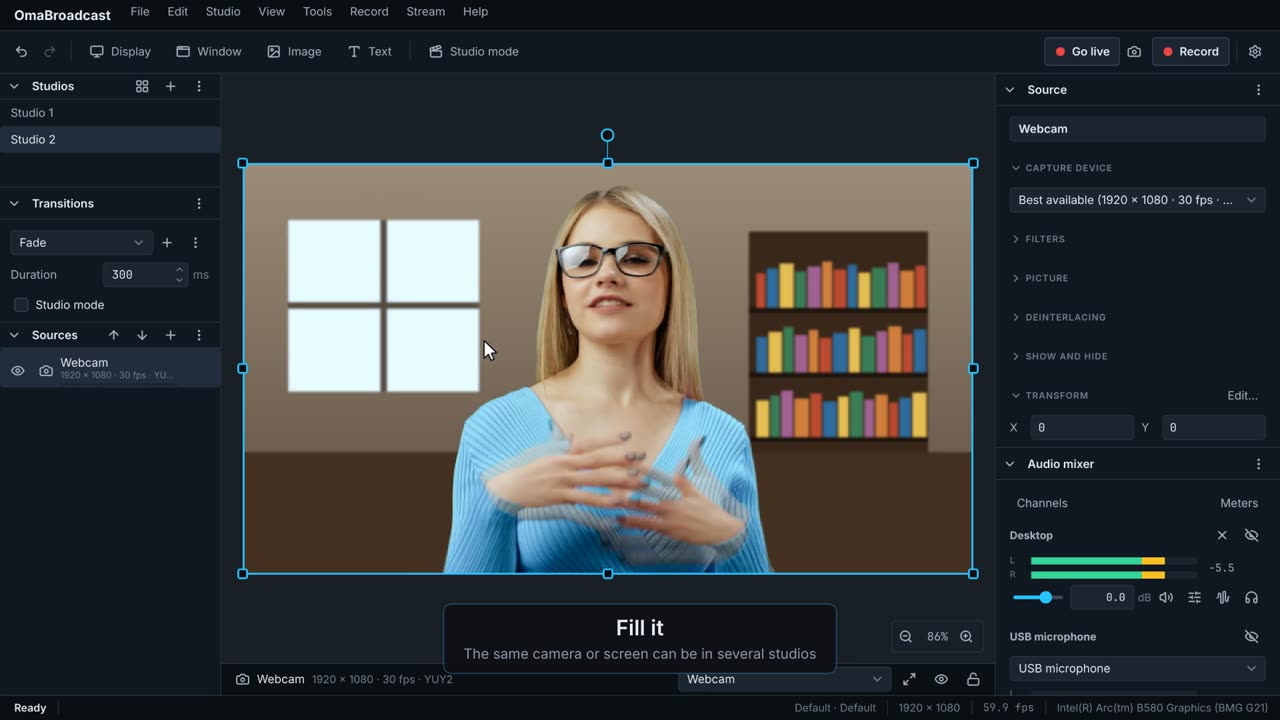
Build a few studios, such as a full-screen game and a talking head, and change between them while you record or stream.
 0:15
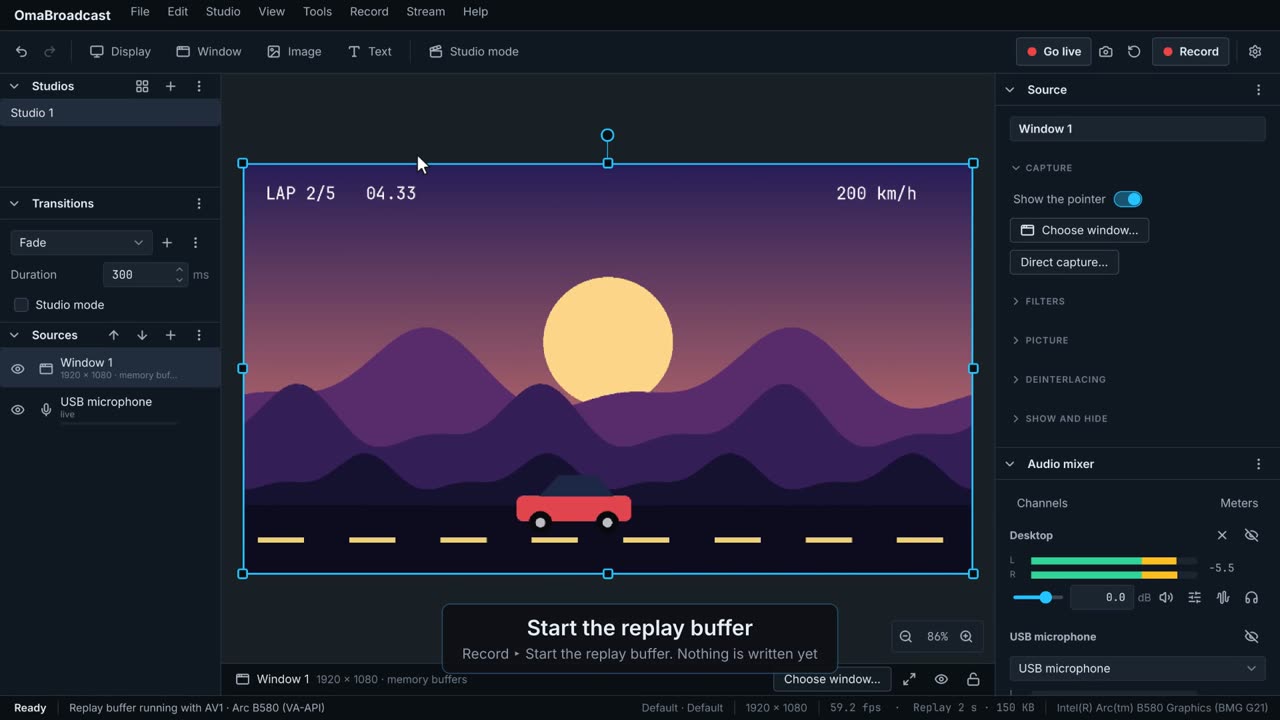
Keep the last moments in memory without recording everything, and save them as a file when something good happens.
 0:19
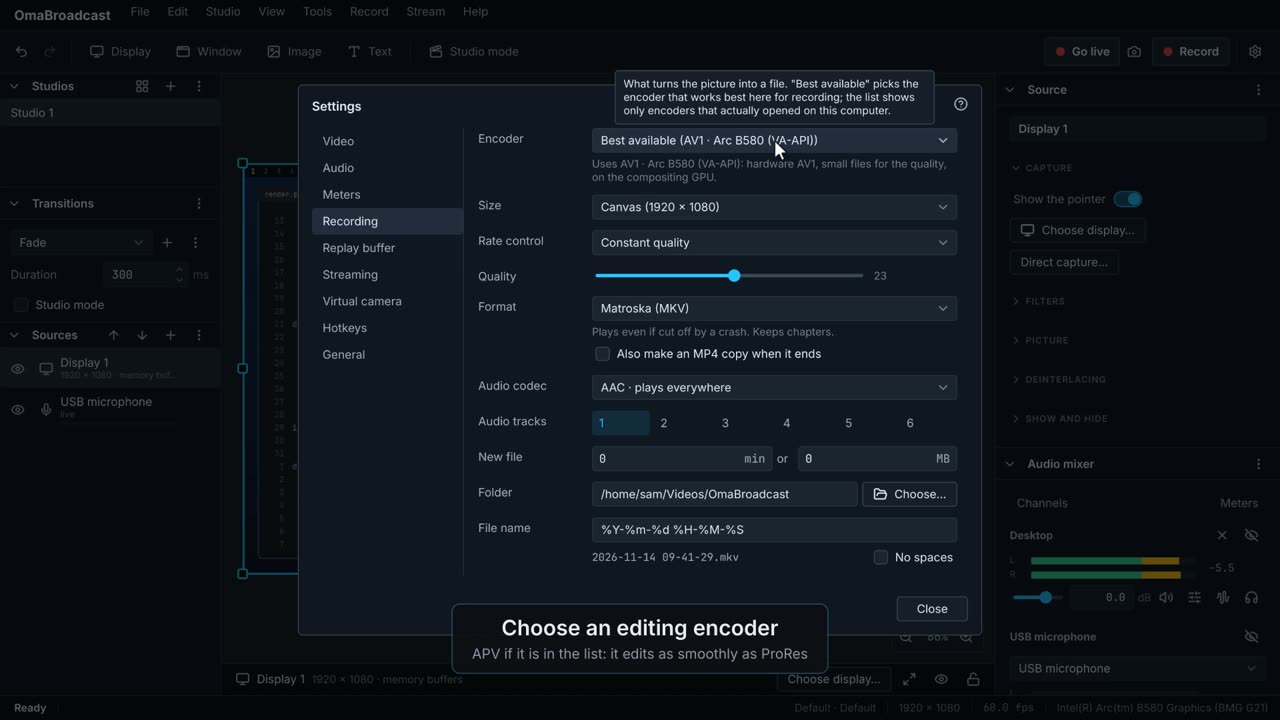
Record in a format that edits smoothly, with your voice and the computer's sound on separate tracks.
What each part does, the basics first, then more for when you know them.
 0:14
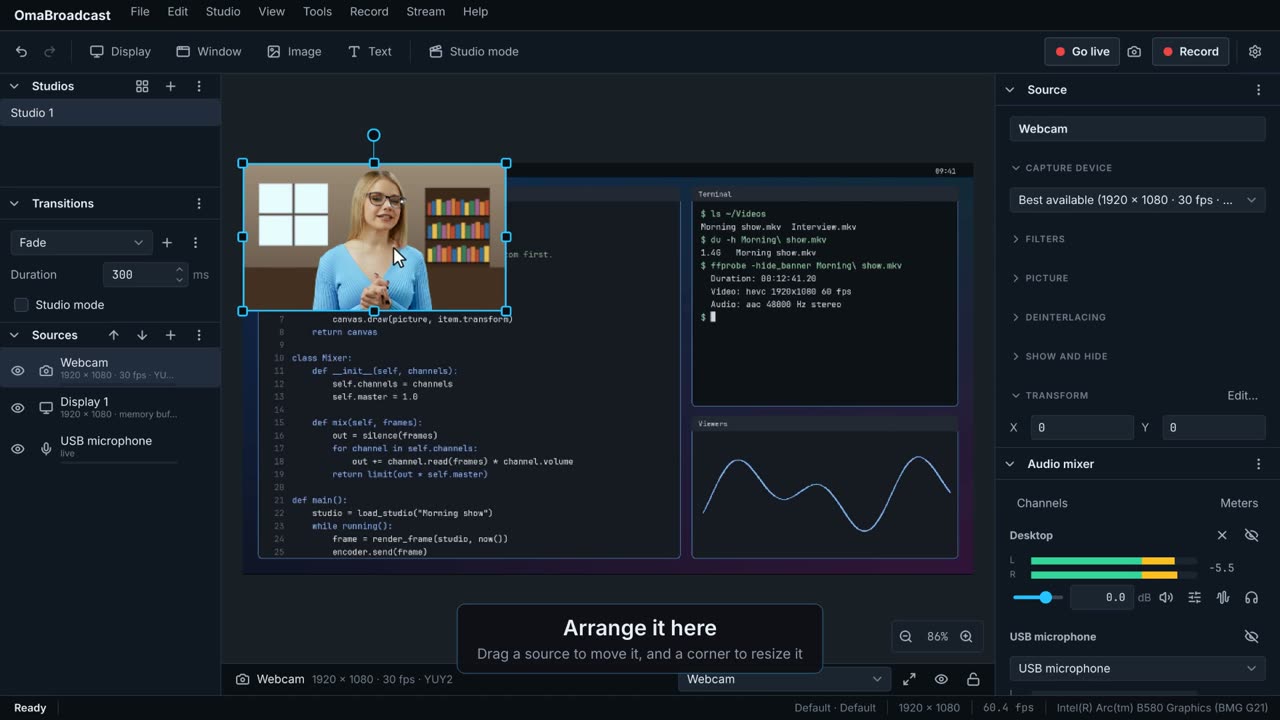
The big picture in the middle: exactly what is recorded and streamed, and where you arrange it.
 0:13
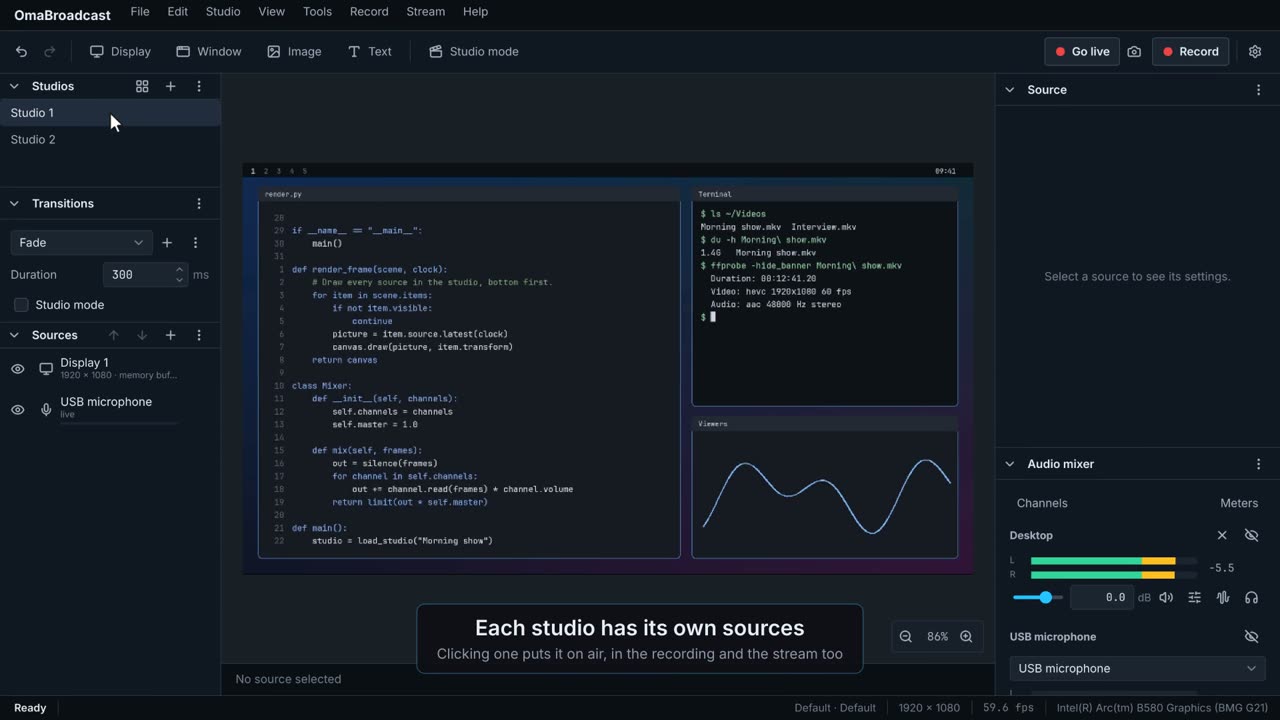
Your shots. Each studio has its own sources, arranged its own way; clicking one puts it on.
 0:16
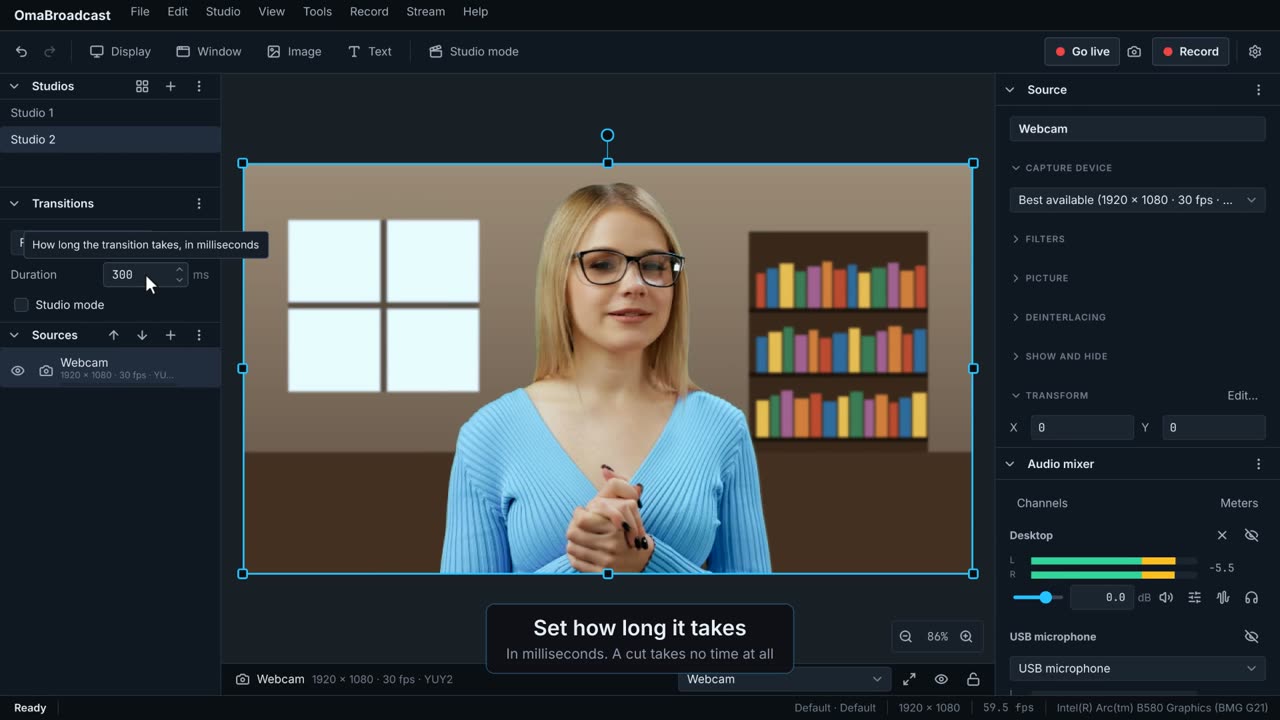
How one studio changes to the next: a cut, a fade, or a swipe, slide, wipe or stinger video.
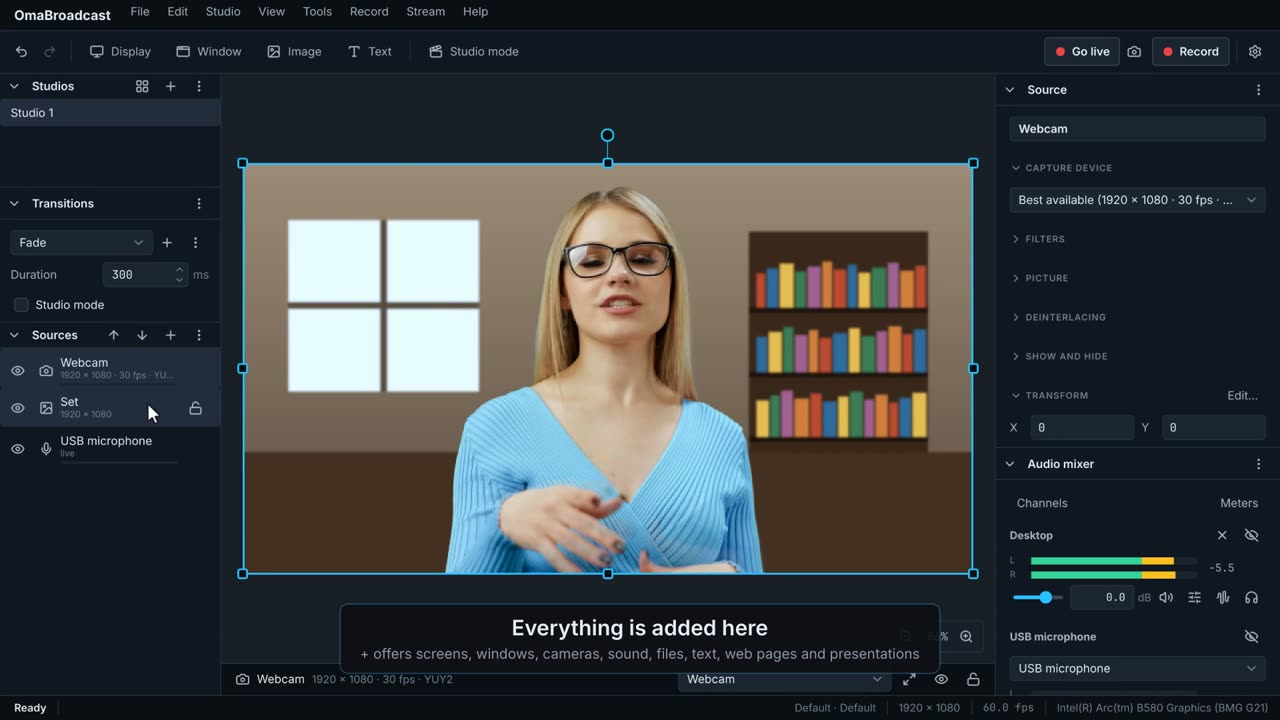 0:15
What is in the selected studio: screens, windows, cameras, pictures, text, sound. Higher in the list is in front.
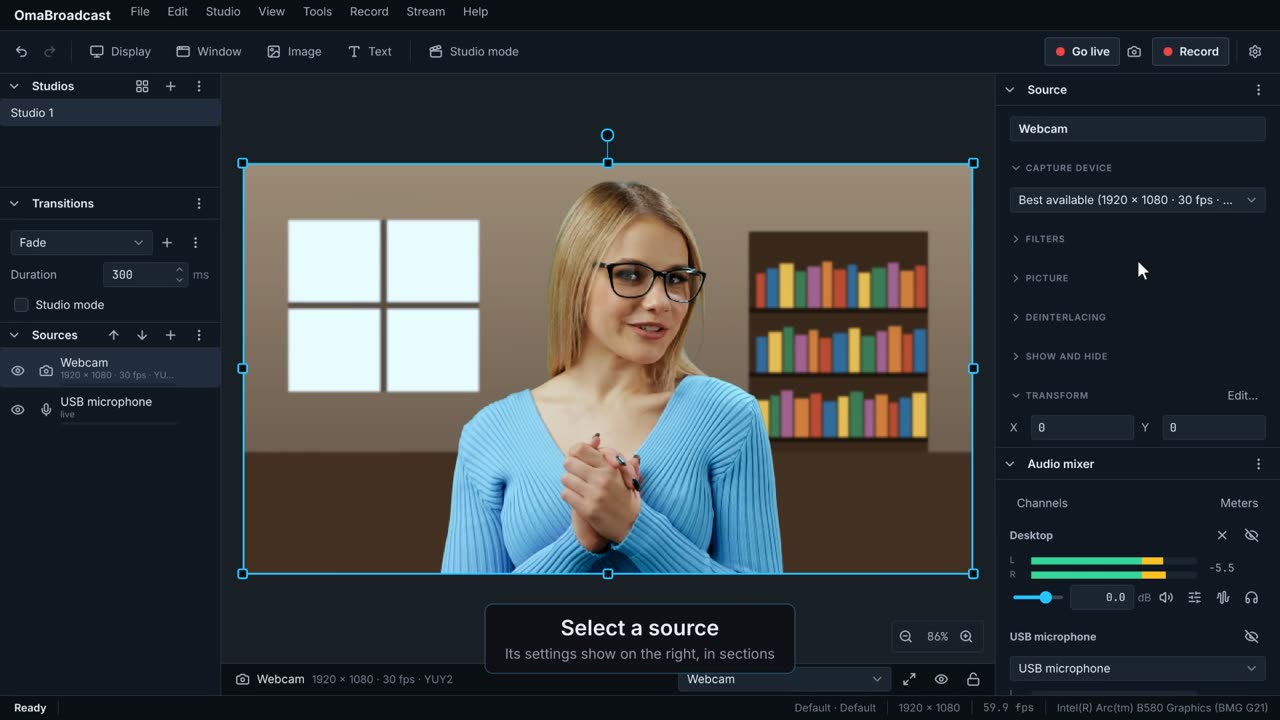 0:10
Everything about the selected source: what it shows, its filters, position, crop and blending.
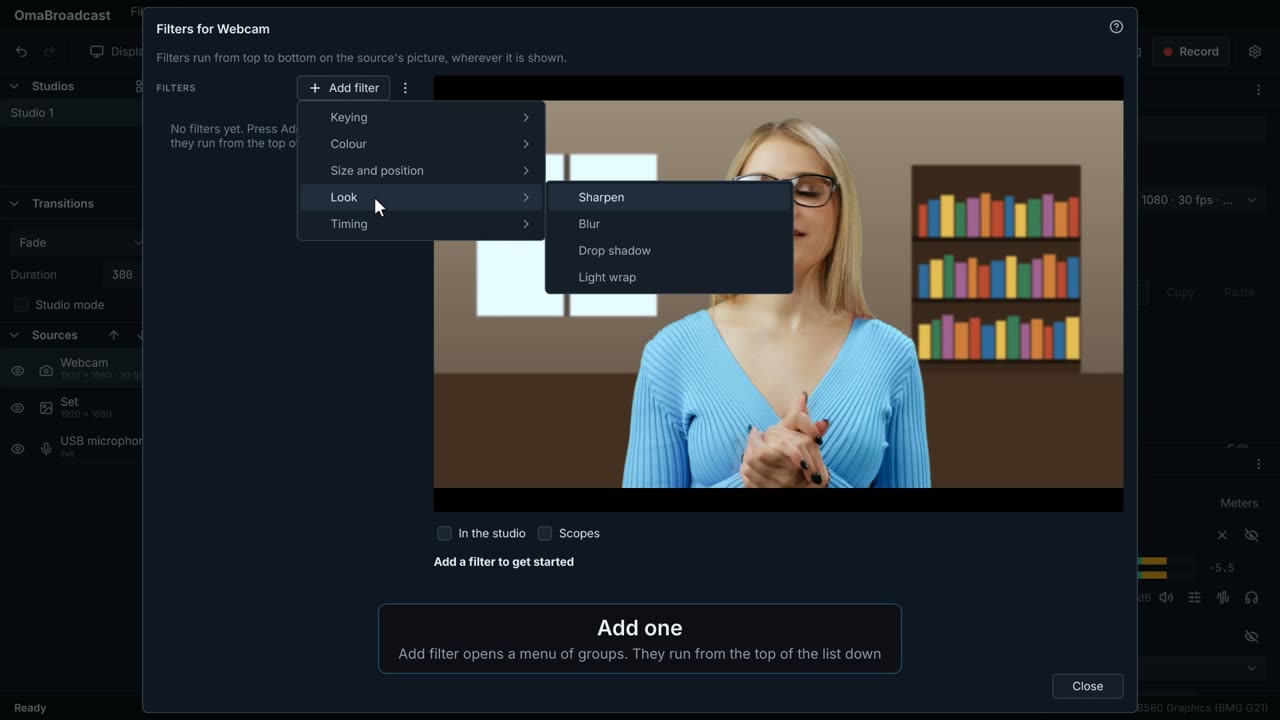 0:22
Change how one source looks: its colour, sharpness, size or shape, or take away the background behind you, with or without a green screen.
 0:18
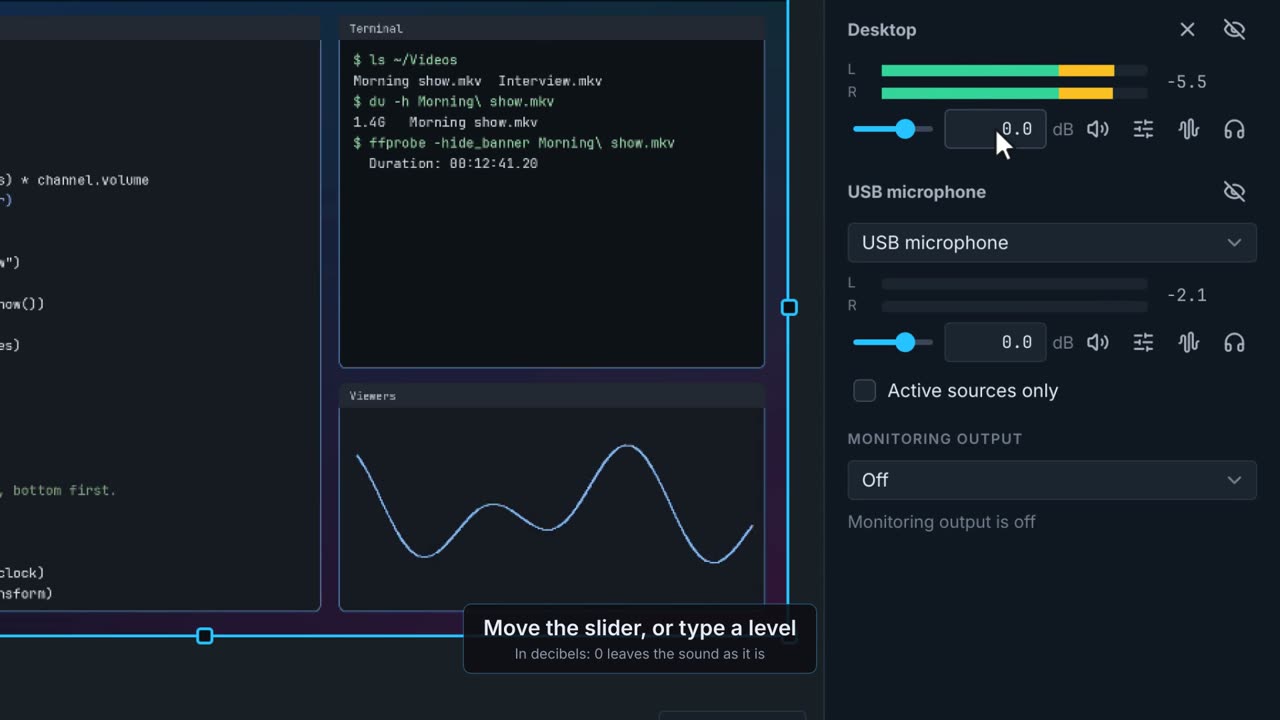
Every sound going into the recording and stream, with how loud it is and controls to change it.
 0:17
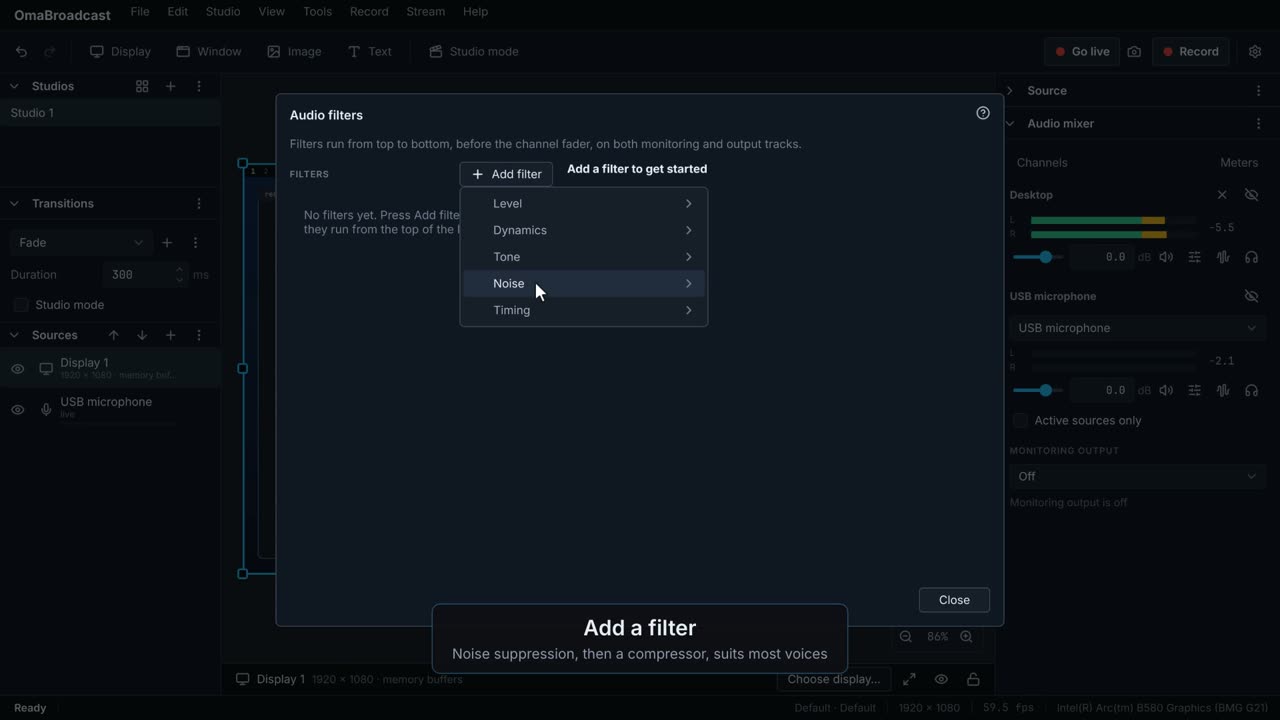
Clean up and shape a sound: take out noise, even out the level, stop it clipping.
 0:19
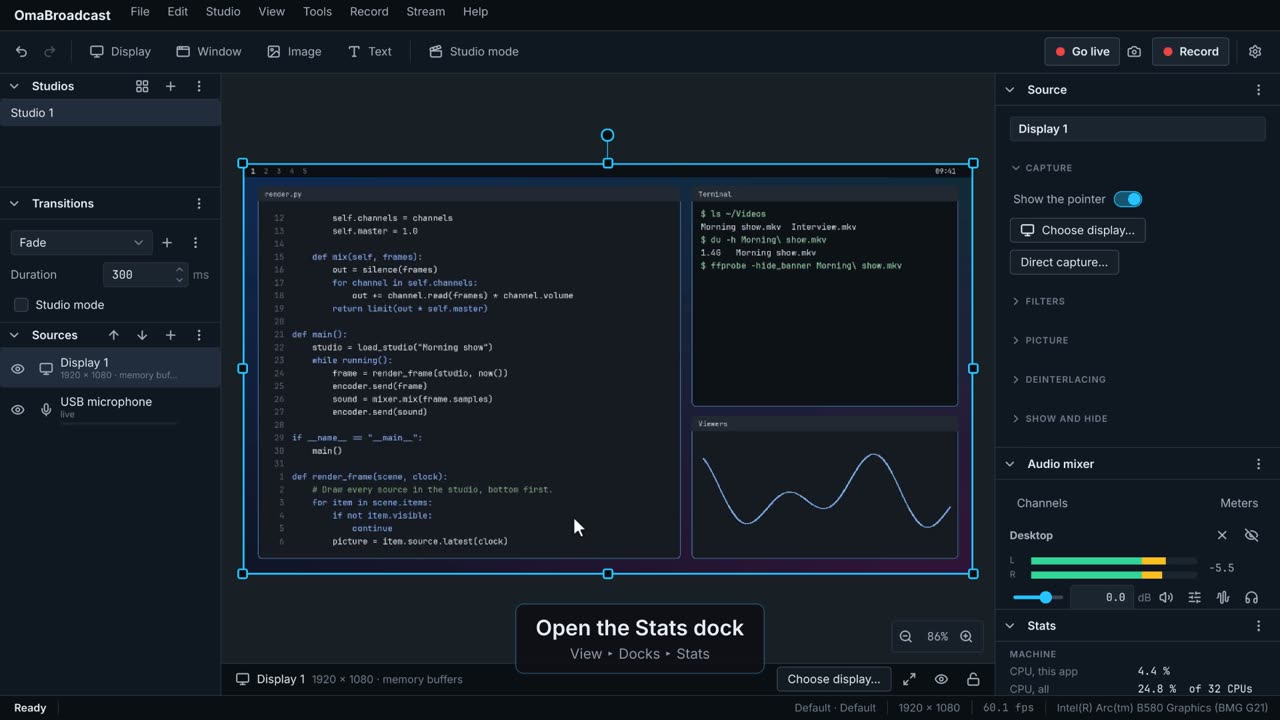
How the computer is keeping up: processor, graphics card, disk space and every output.
 0:17
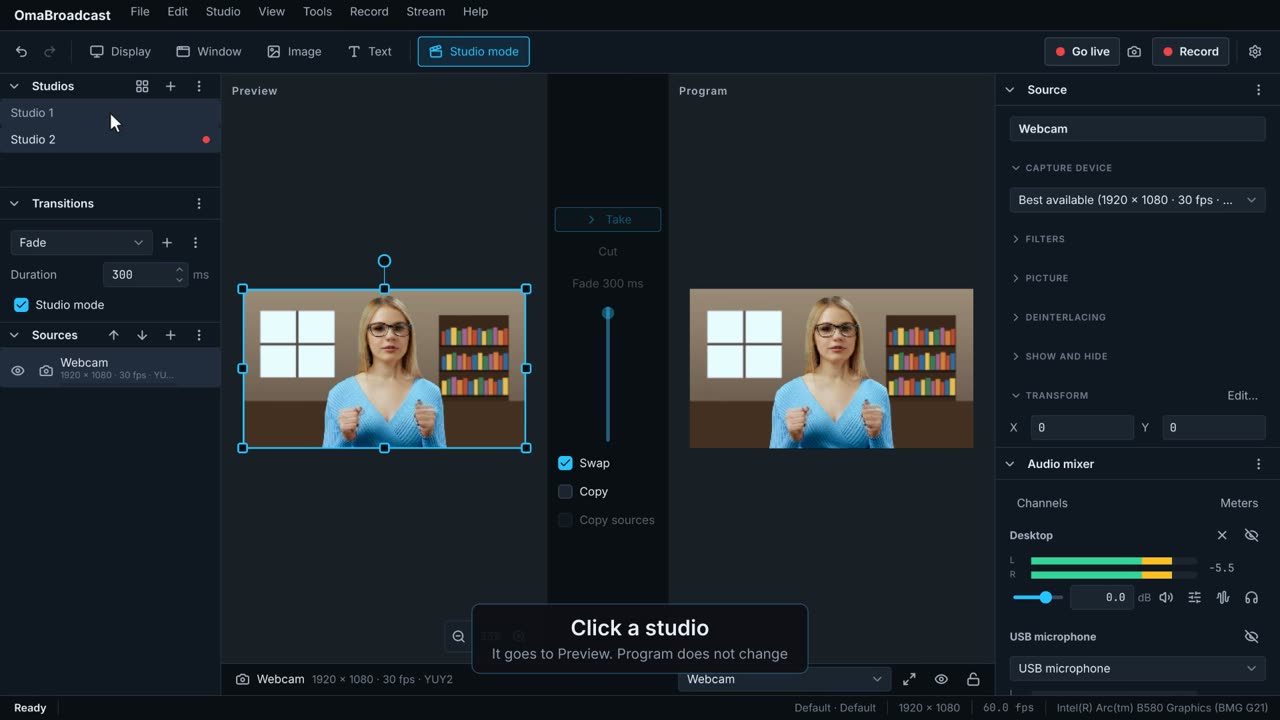
Change a studio in Preview while the Program stays on air, then put it on with Take.
 0:14
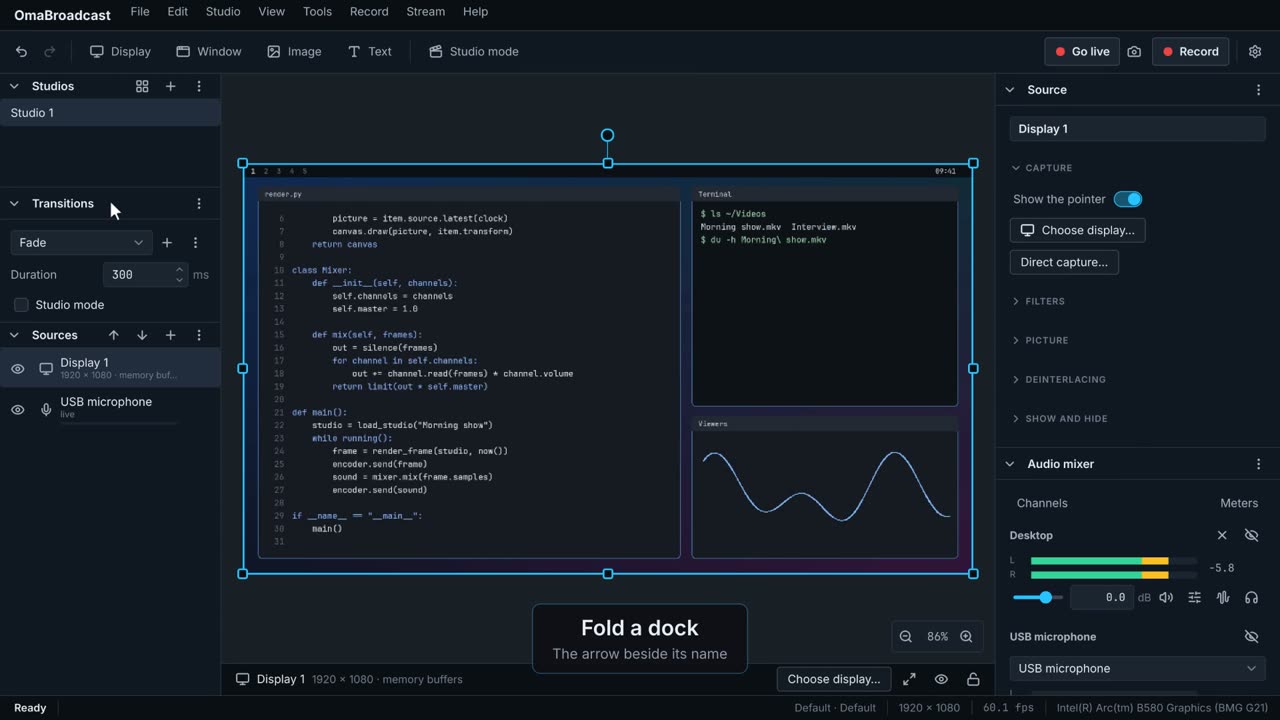
The panels round the picture can be folded, moved, closed and brought back.
 0:15
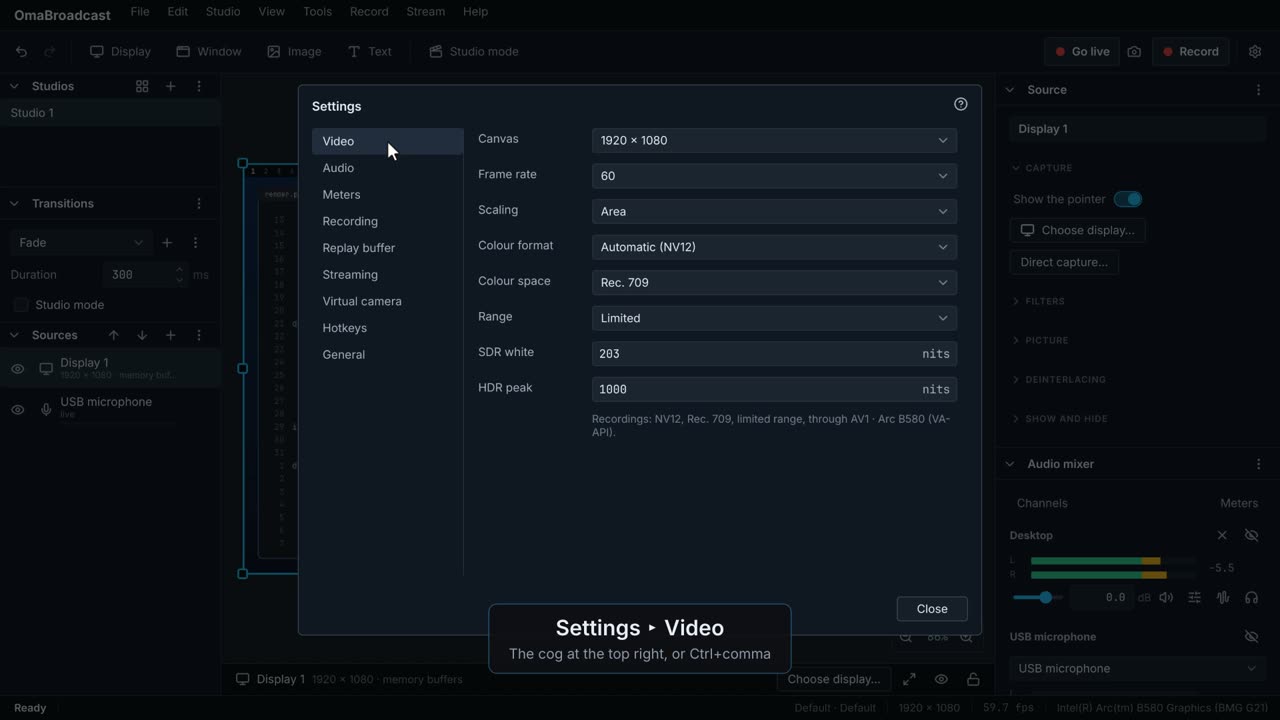
The size of the picture and how many frames a second it has, for everything that goes out.
 0:15
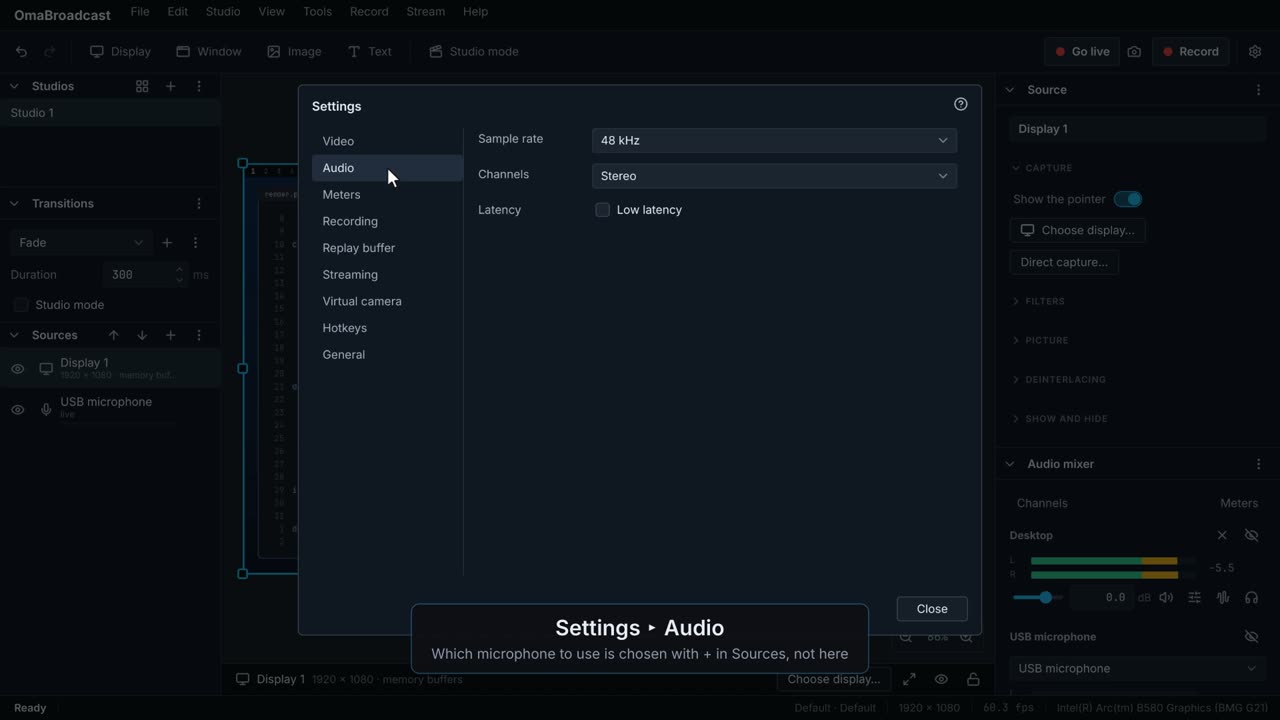
The sound format for everything that goes out.
 0:18
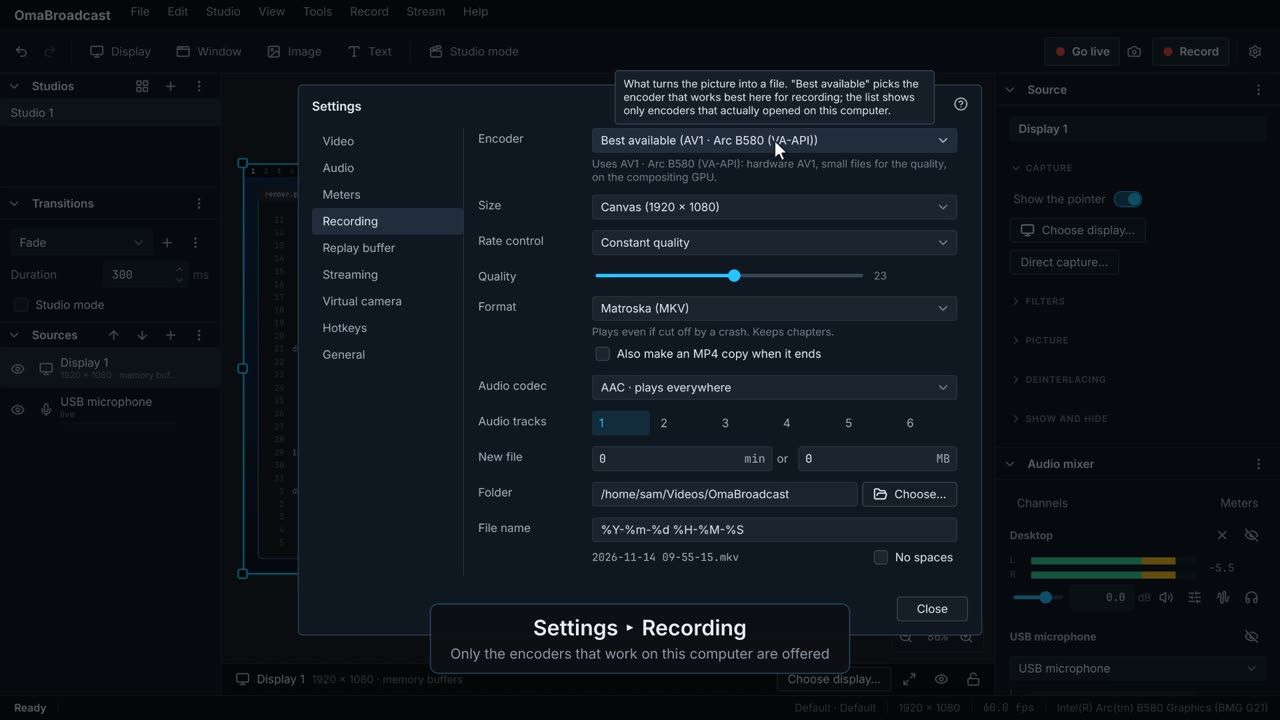
How recordings are made: the encoder, the quality, the file type and where they go.
 0:12
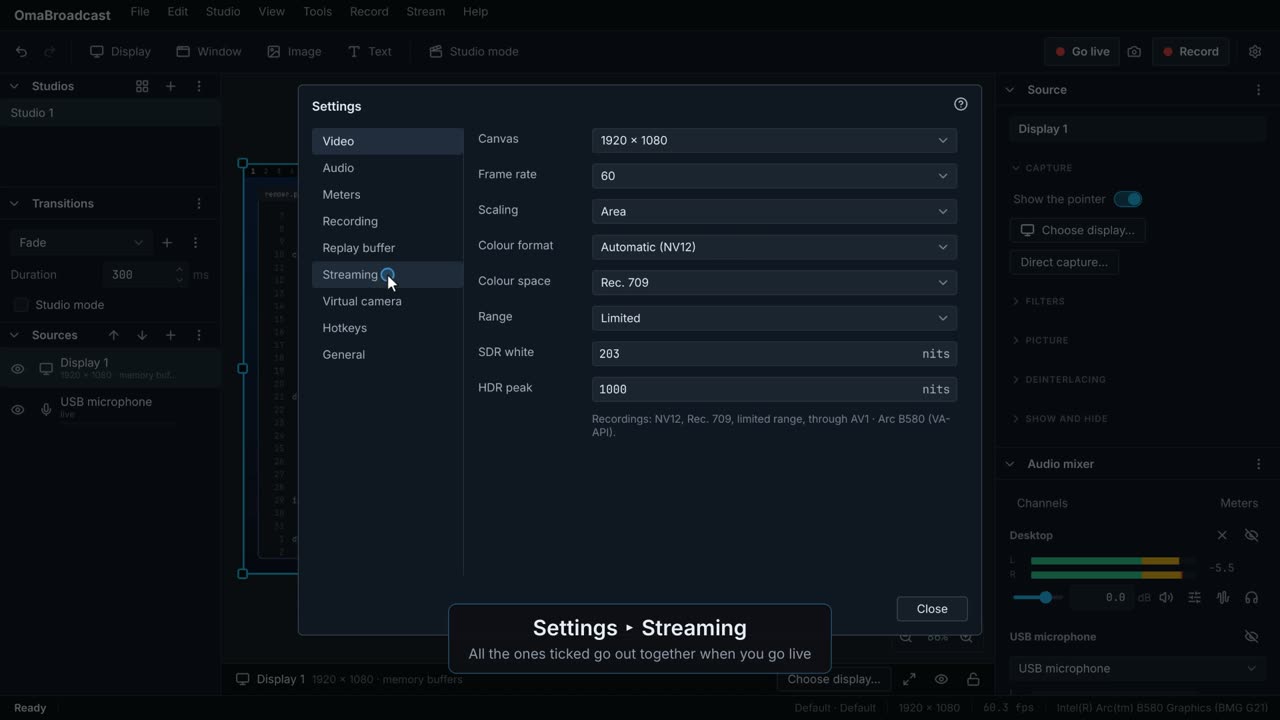
Where you go live: one stream for each service, and all the ones ticked go out together.
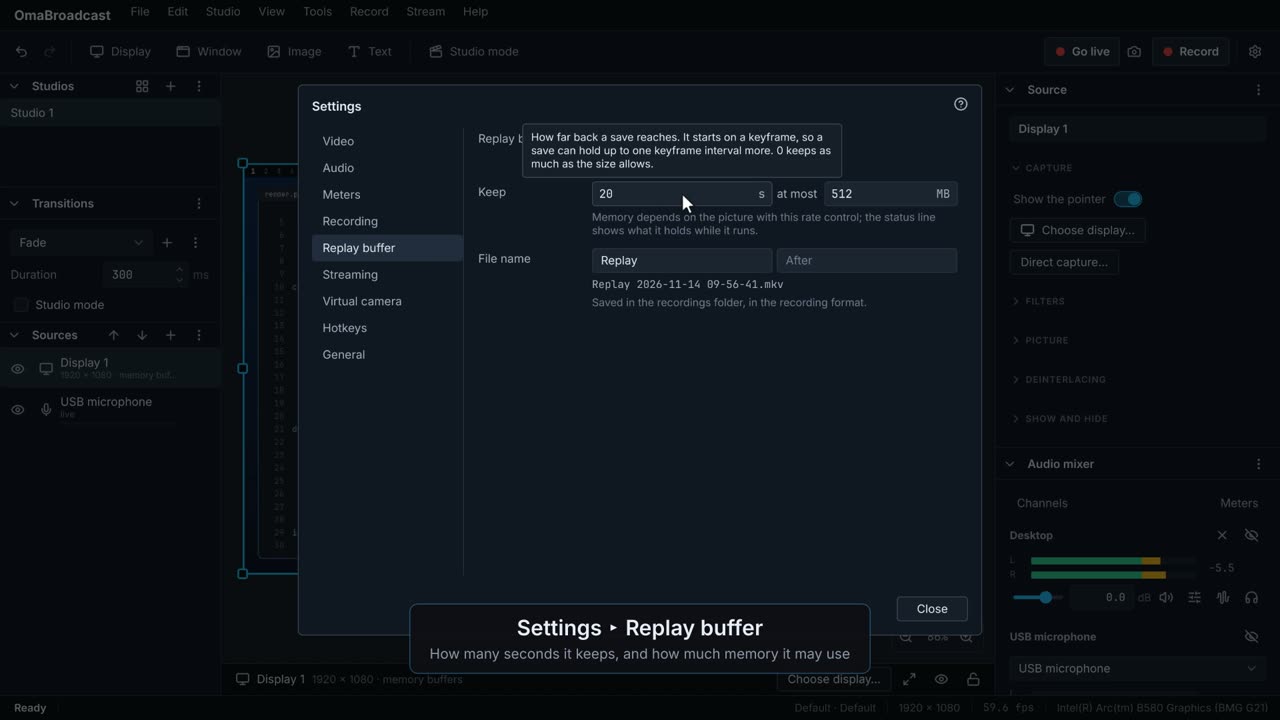 0:18
Keeps the last moments in memory, to save as a file when you choose.
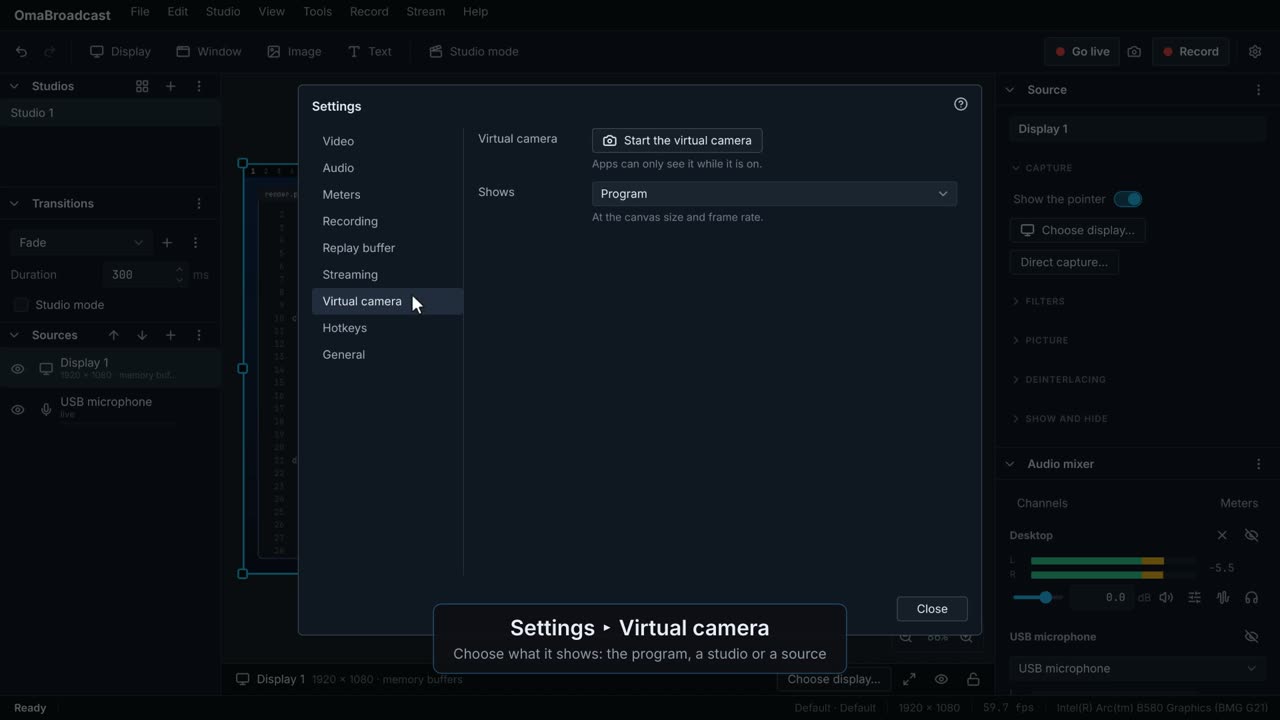 0:16
Use the picture as a camera in video calls and other apps.
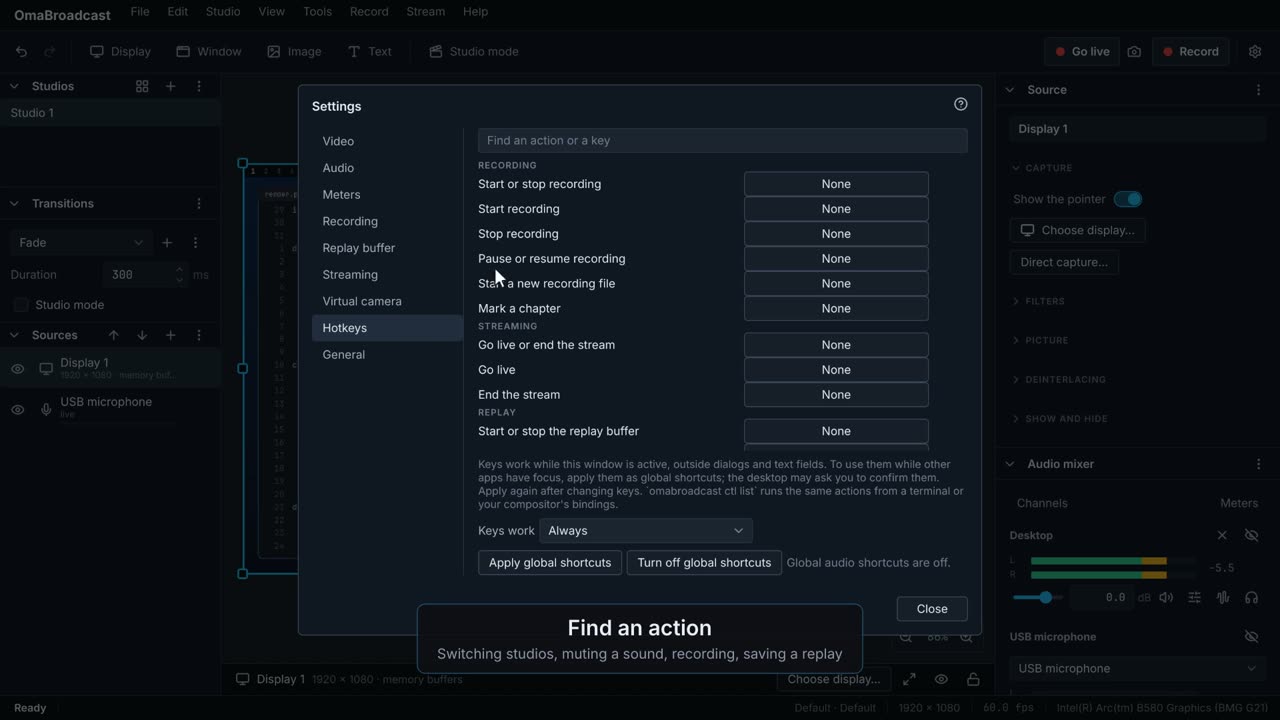 0:16
Keys for anything: switching studios, muting, recording, saving a replay.
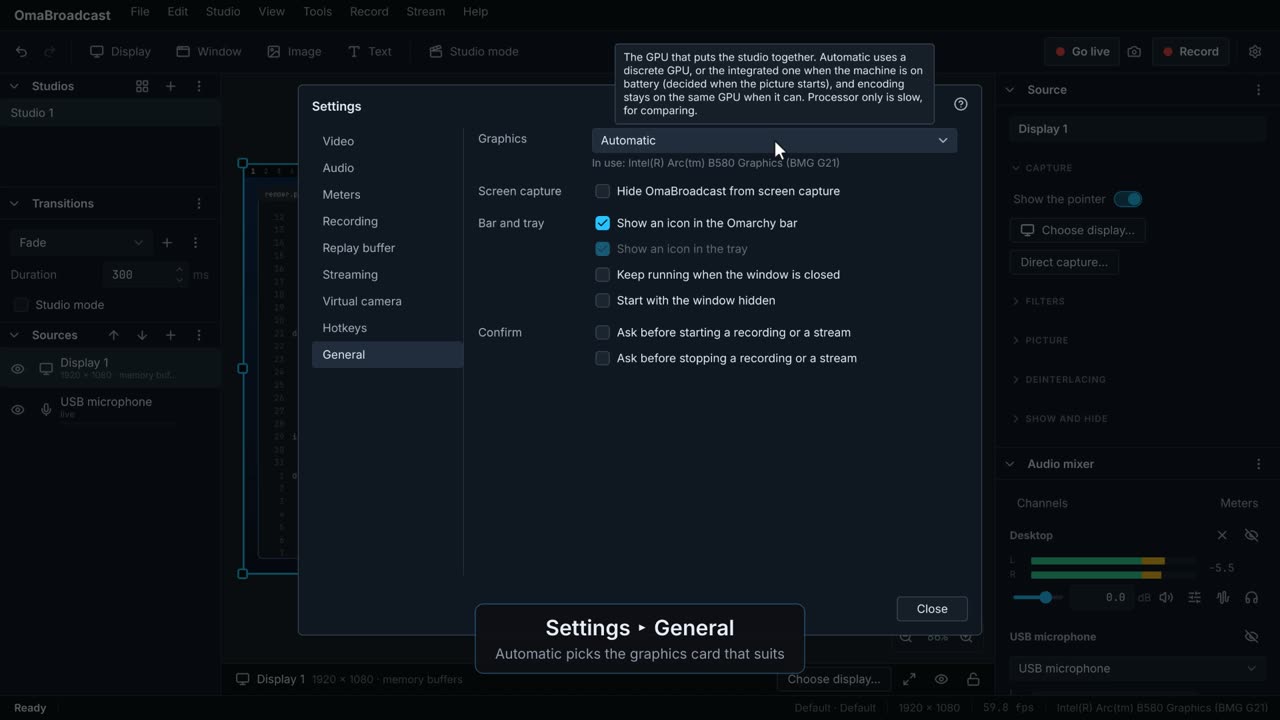 0:19
The graphics card, the bar or tray icon, and whether to ask before starting and stopping.
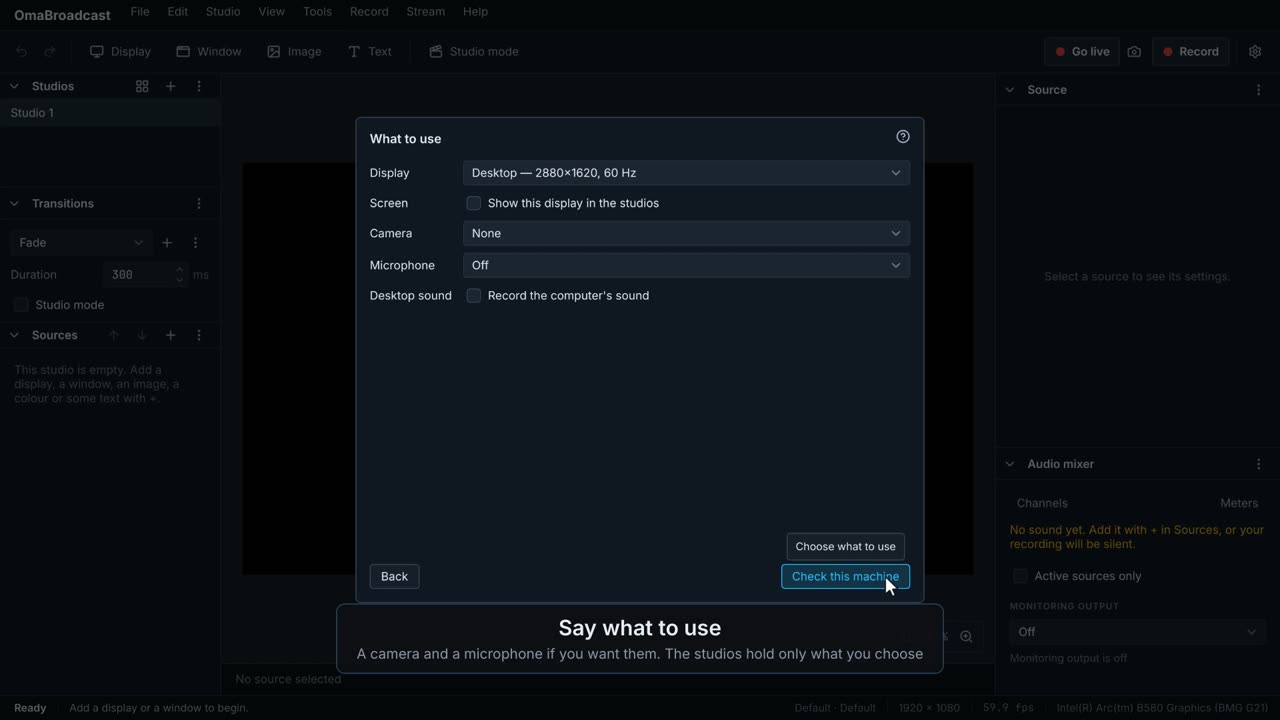 0:29
Answers a few questions, tests this computer and makes a set-up that suits what you are making.
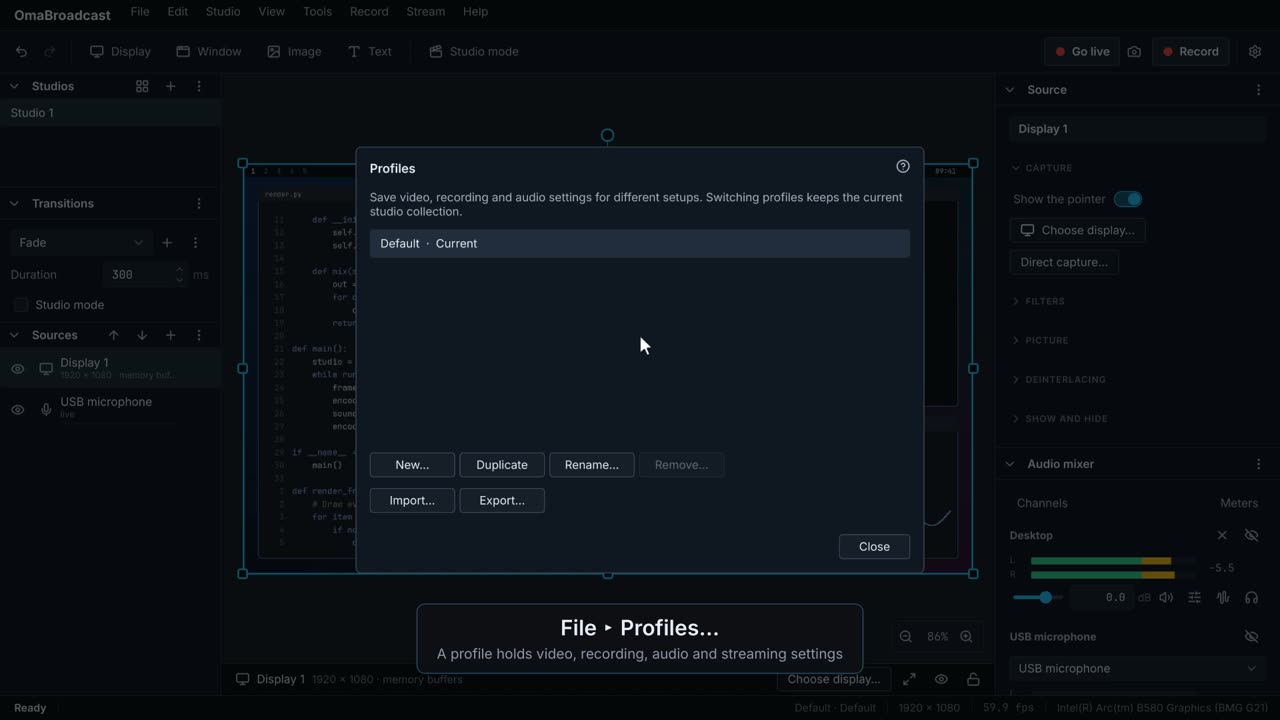 0:21
A profile is a set of video, recording, audio and streaming settings. A collection is a set of studios and sources.
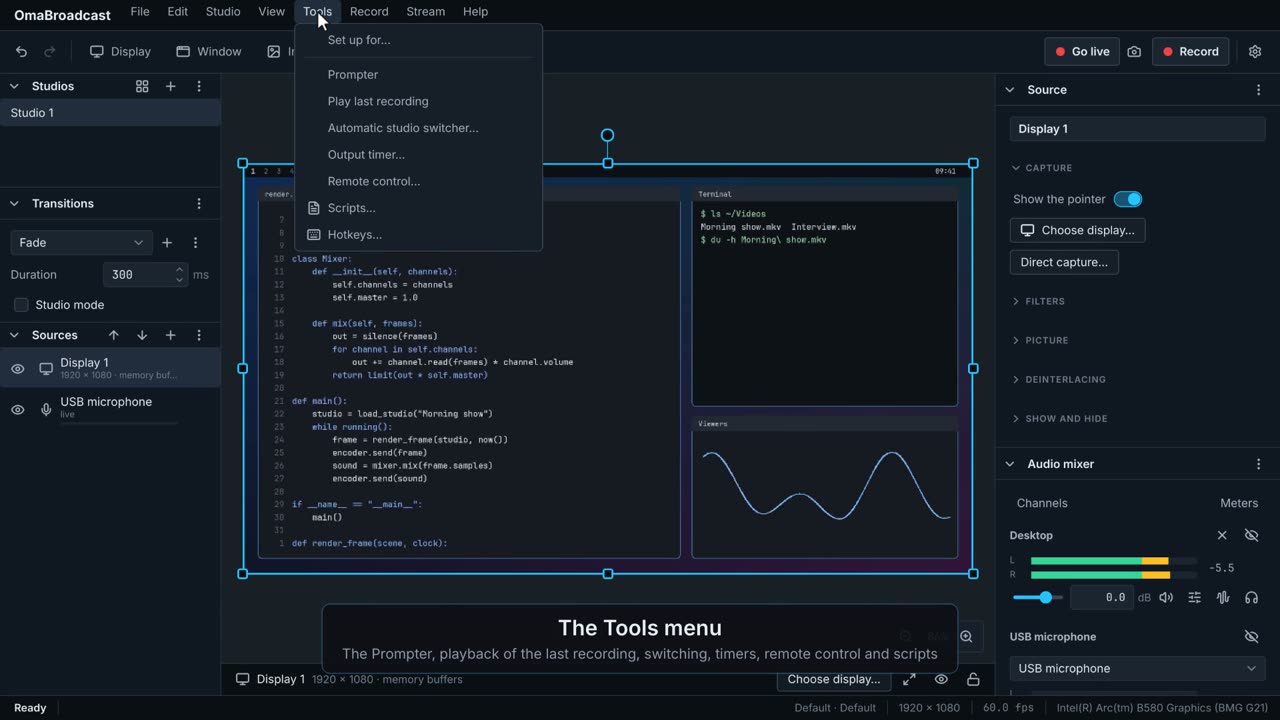 0:13
Timers, automatic switching, remote control and scripts.
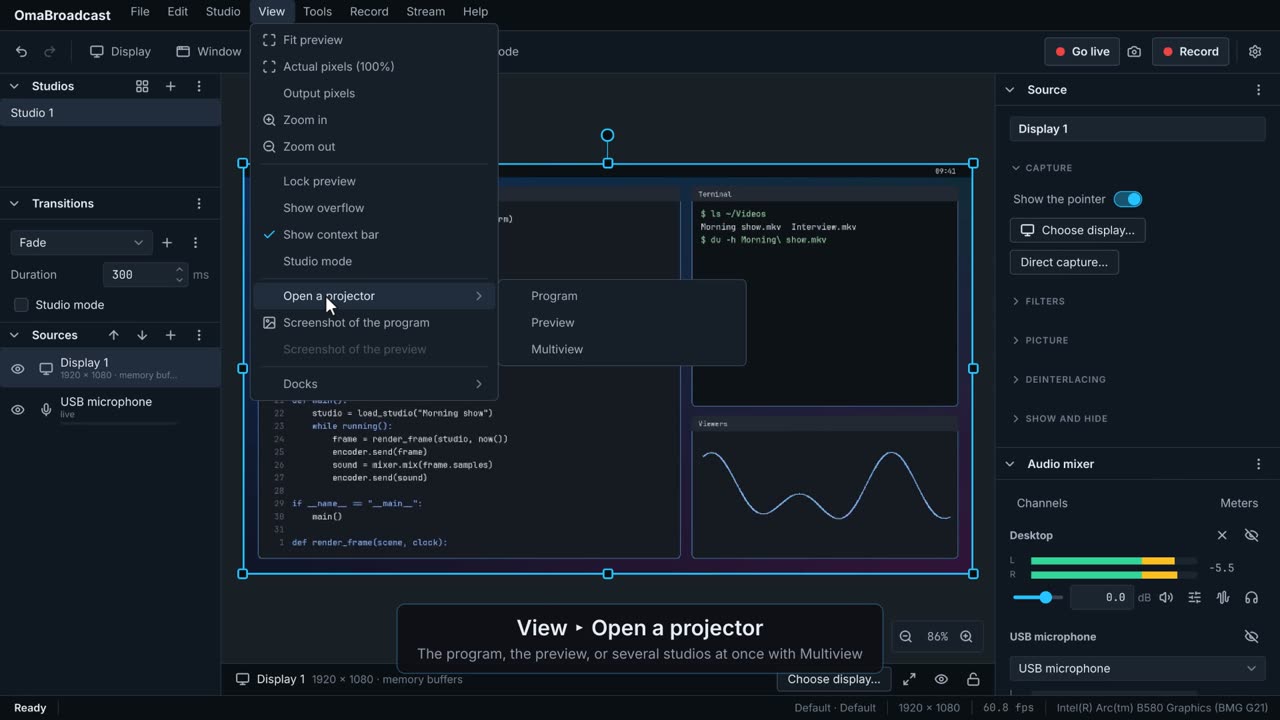 0:13
Show the program, the preview, a studio or a source in a window of its own, such as on a second screen.
 0:14
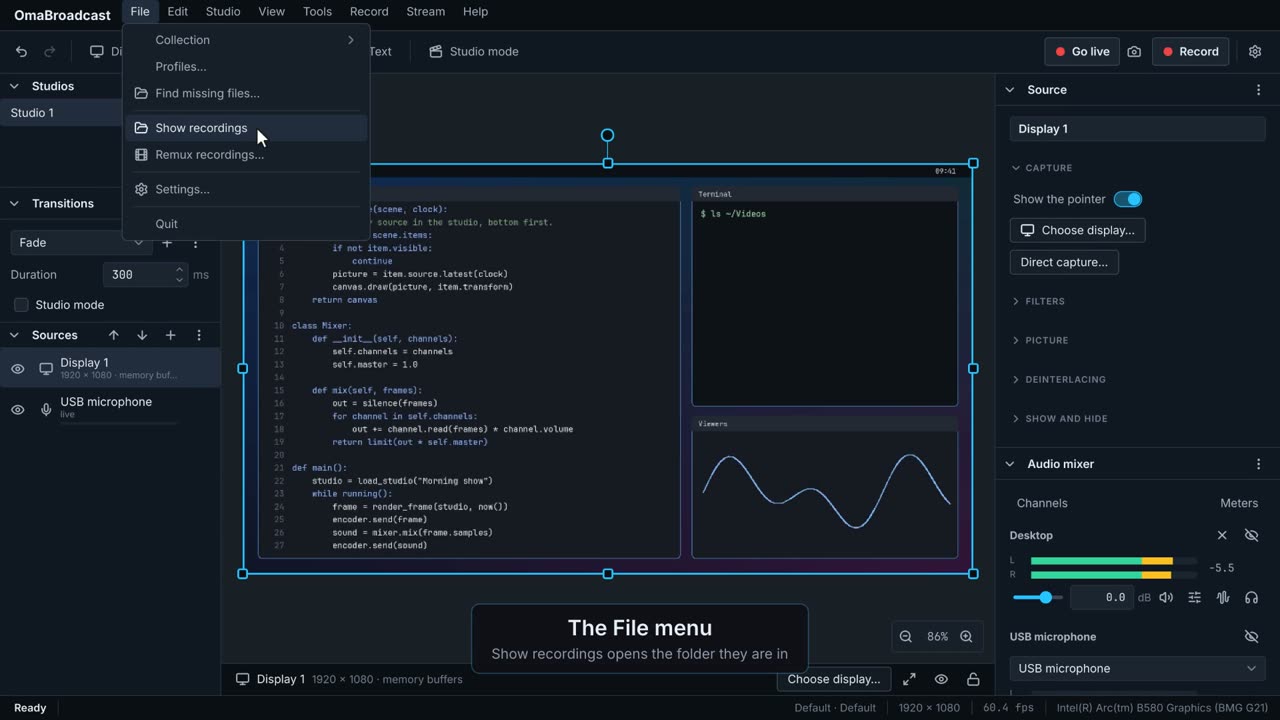
Finding recordings, making MP4 copies, and fixing sources whose files have moved.
What to try, in order.
The things people ask, with measured answers.