Installing Omamesh
Two steps: the app from the latest release on GitHub, then the 3D engine, which Omamesh sets up for you.
Omamesh turns photos into textured 3D models on your own computer, with nothing uploaded. Each part of it is explained below, with a short film showing it in use.
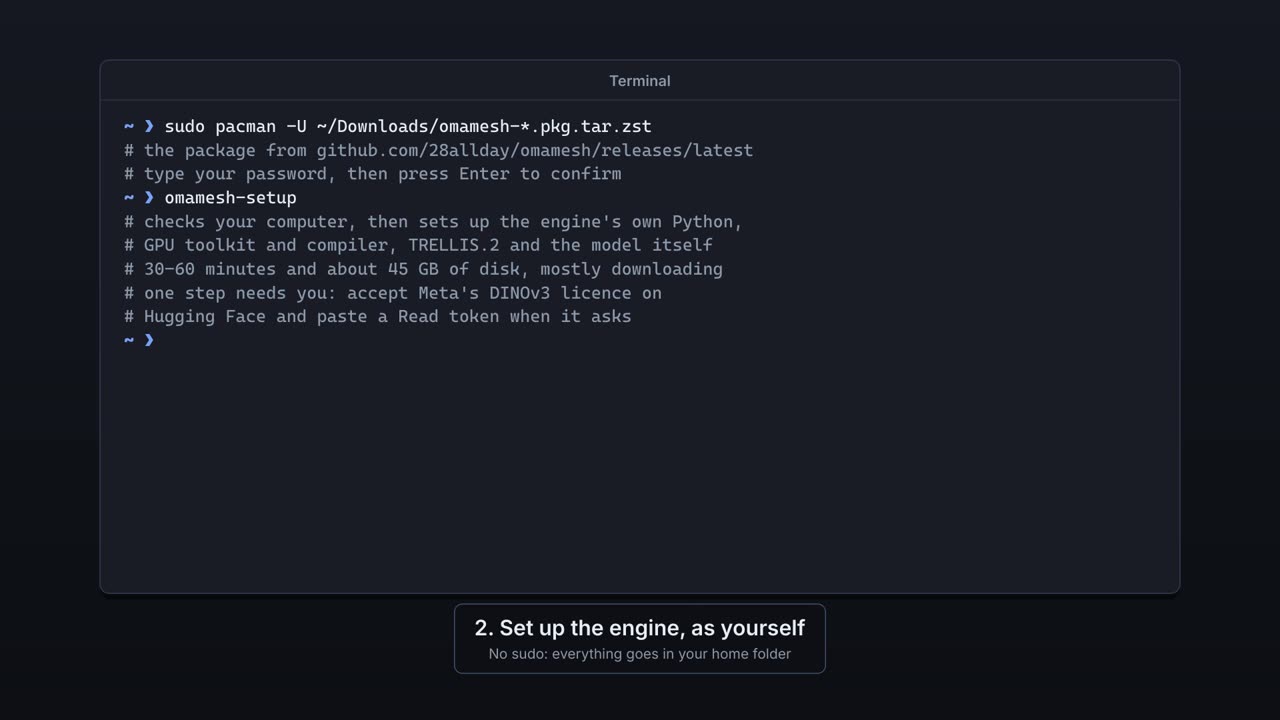 0:28
0:28Two steps: the app from the latest release on GitHub, then the 3D engine, which Omamesh sets up for you.
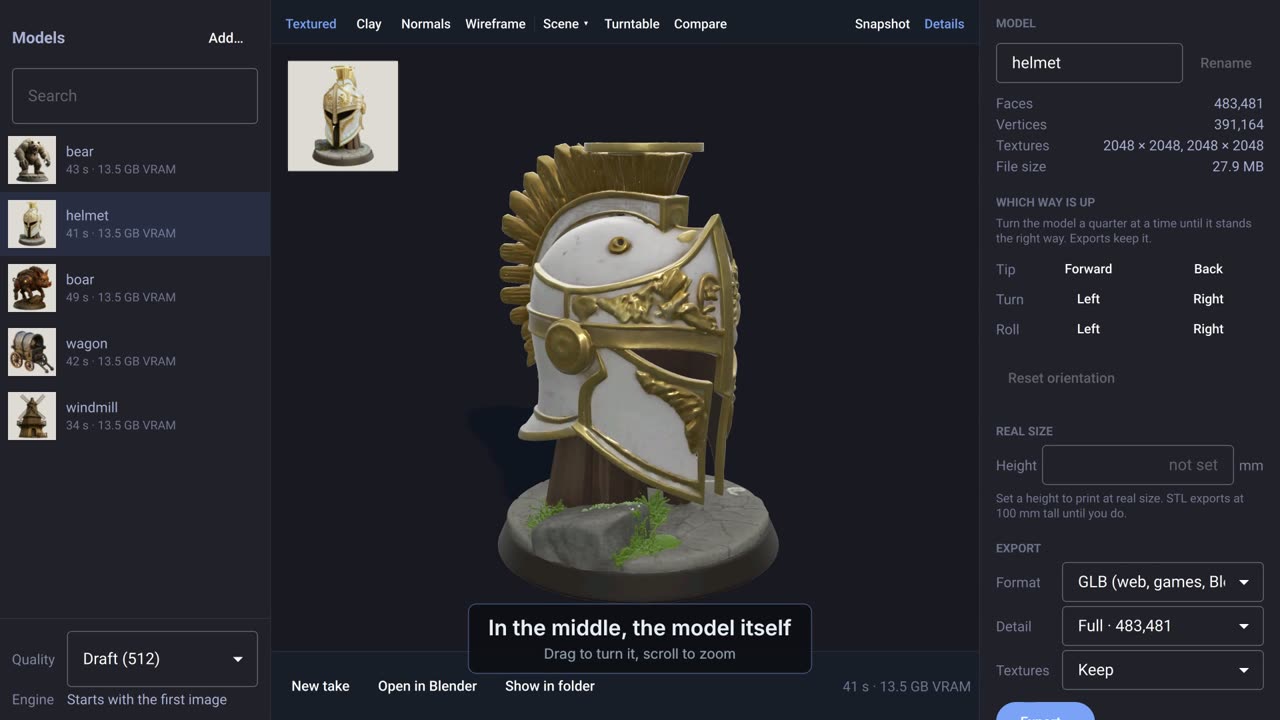 0:34
0:34The list of models on the left, the model in the middle, its details on the right.
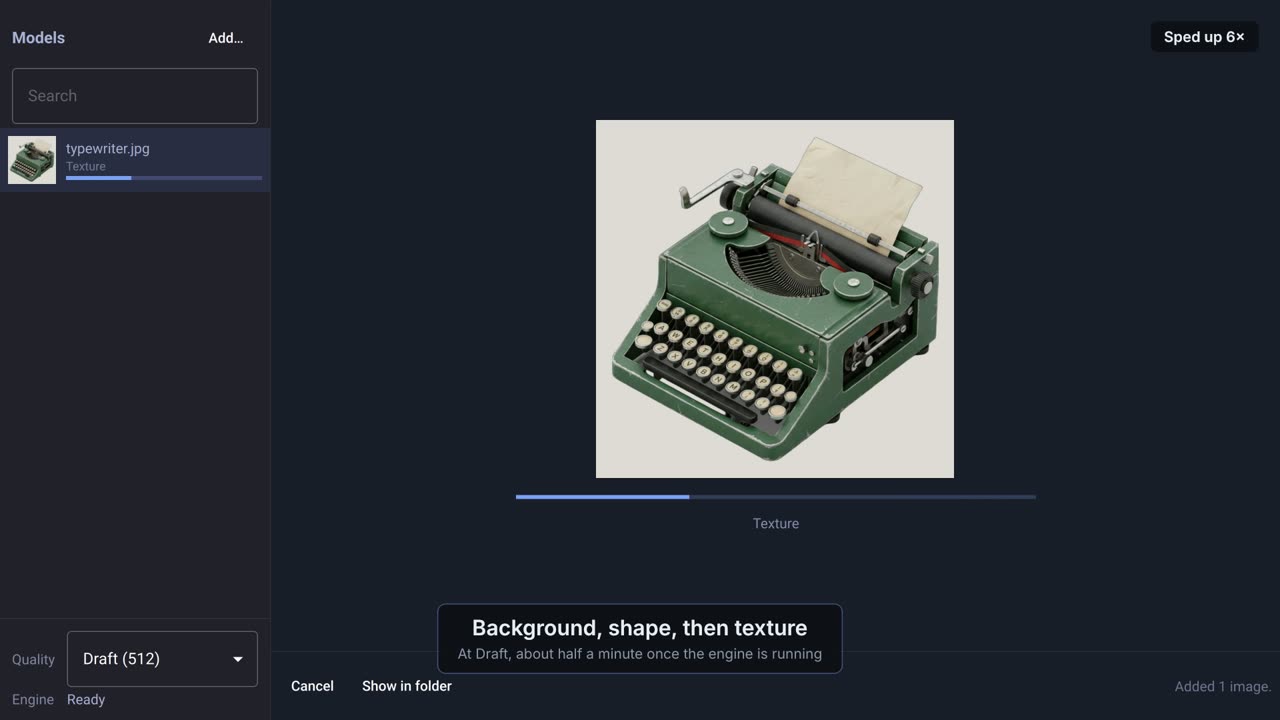 0:39
0:39Drop a photo in. A few seconds to a few minutes later it's a textured 3D model you can turn around.
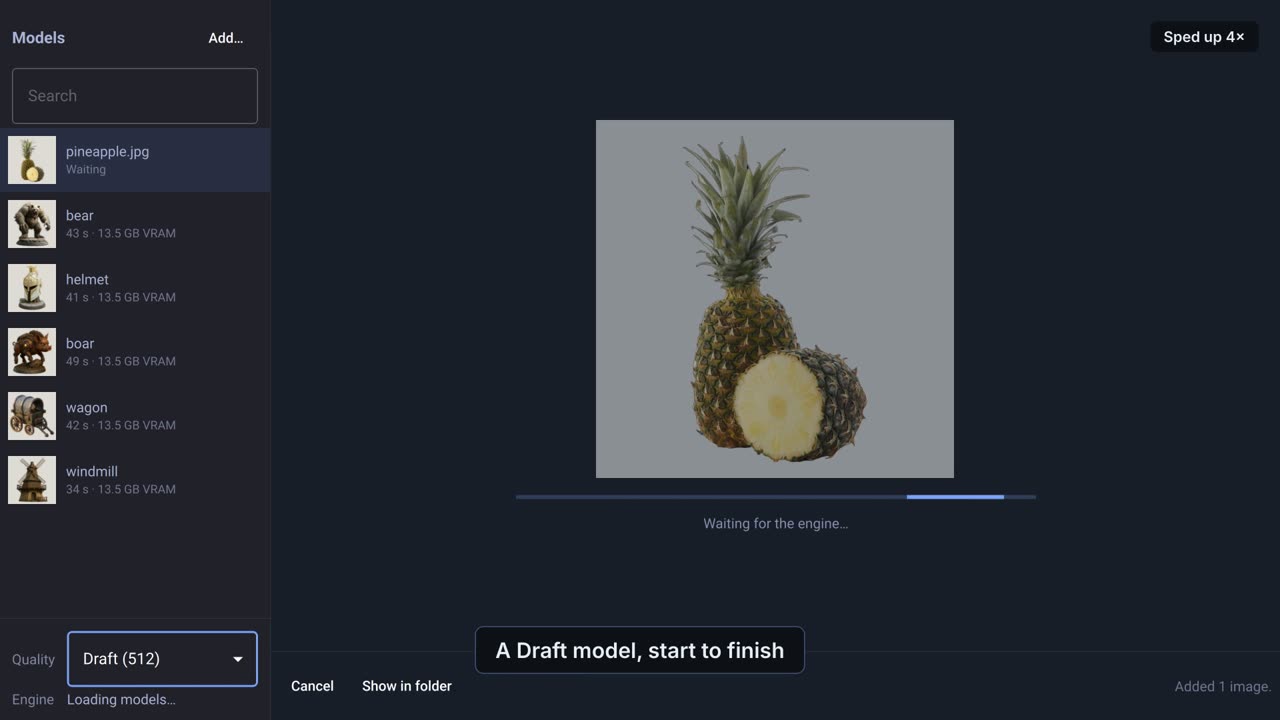 0:45
0:45Draft for a quick look, Standard by default, High for the finest. Pick it before adding photos.
 0:39
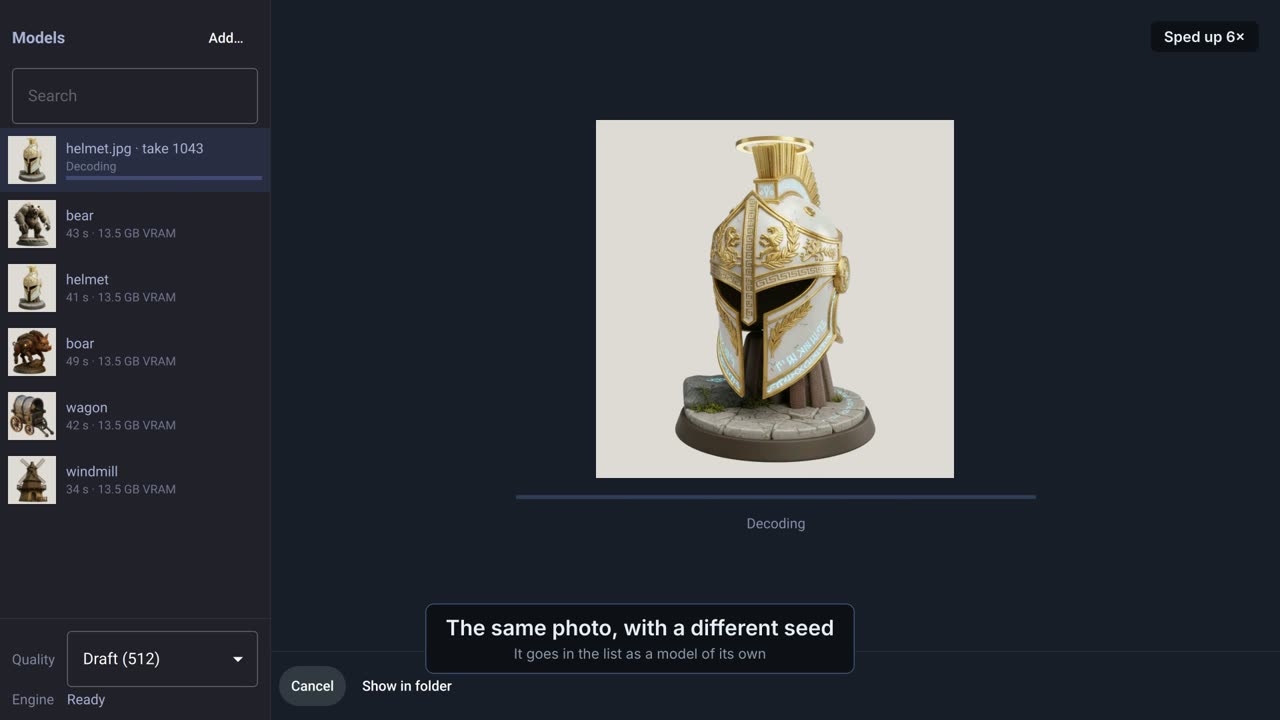
0:39Make the same photo again with a different seed, and keep every take. Cancel or retry a model that's being made.
 0:35
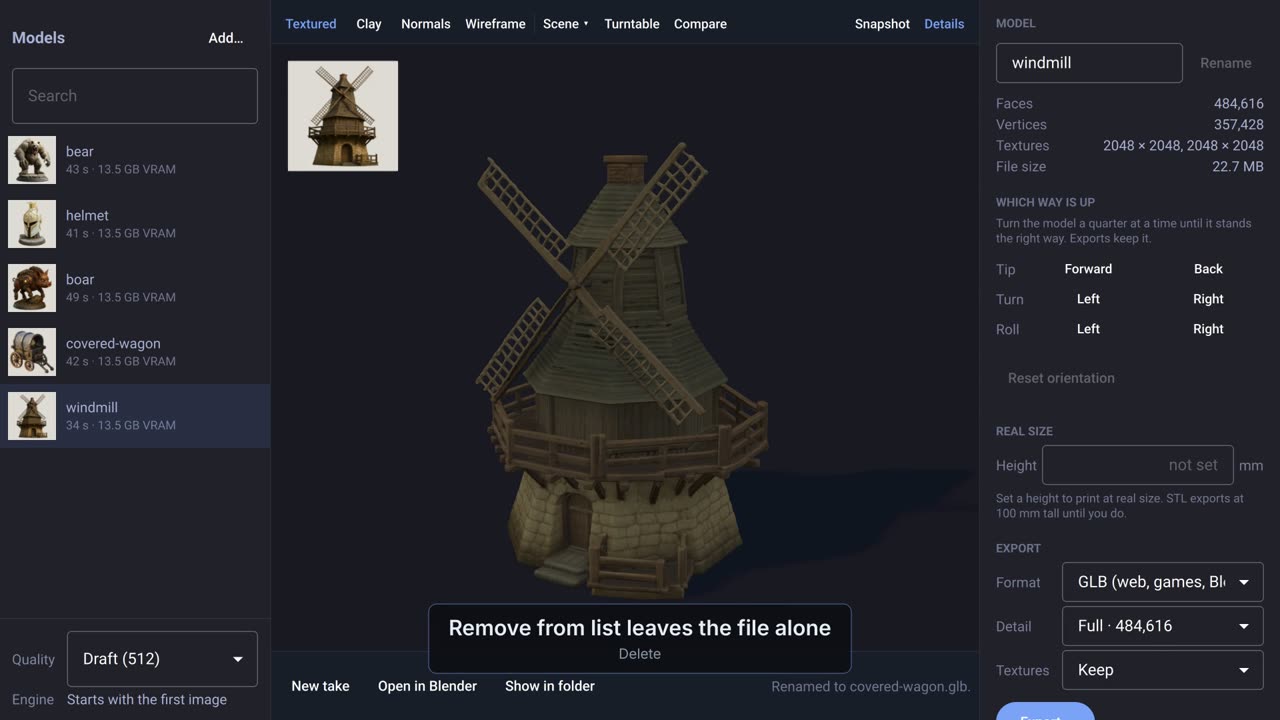
0:35Search it, rename models, remove them, send them to the bin, or drop a .glb in to open it again.
 0:32
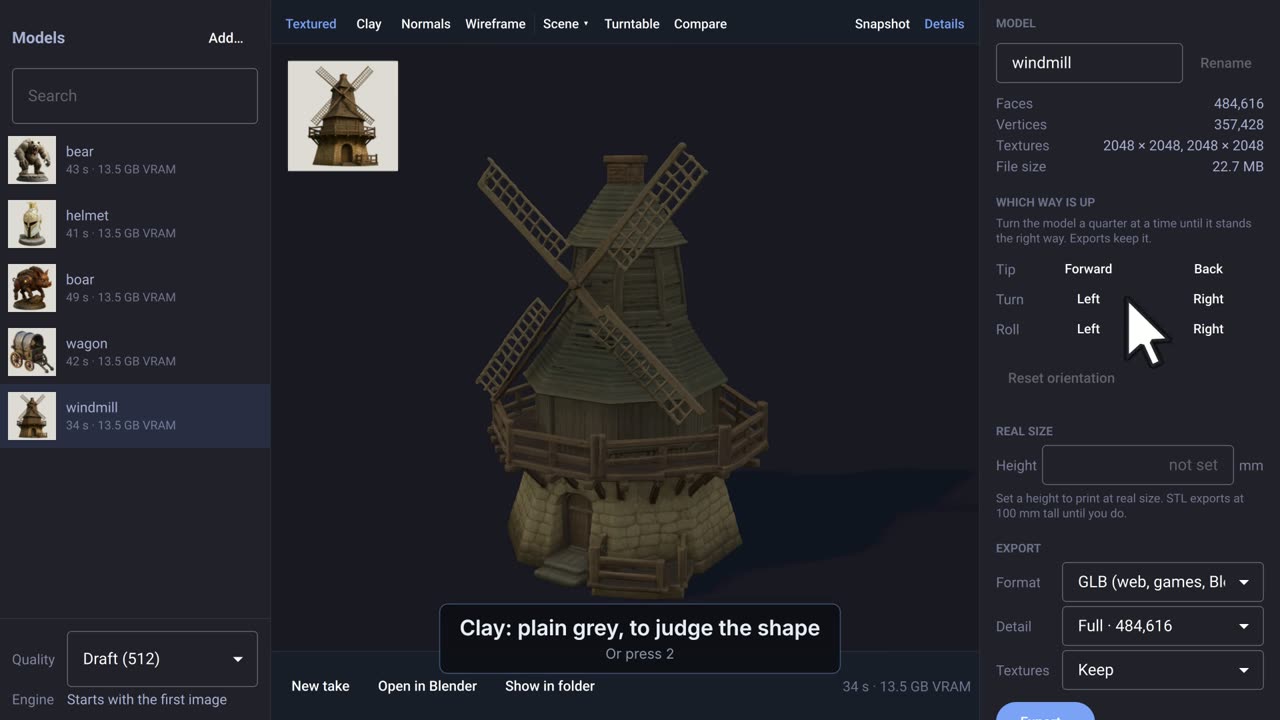
0:32Turn and zoom the model, and see it textured, as plain clay, as normals or as a wireframe.
 0:42
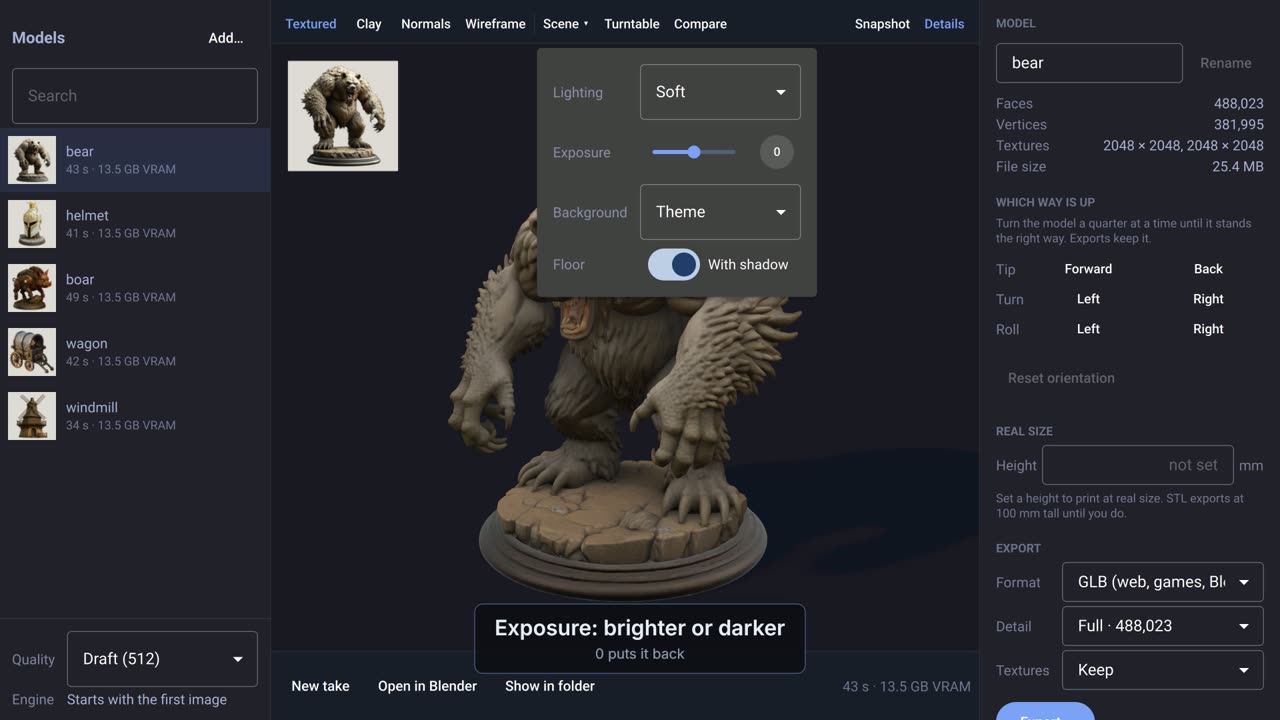
0:42Lighting, exposure, background and the floor shadow, and a turntable to spin the model.
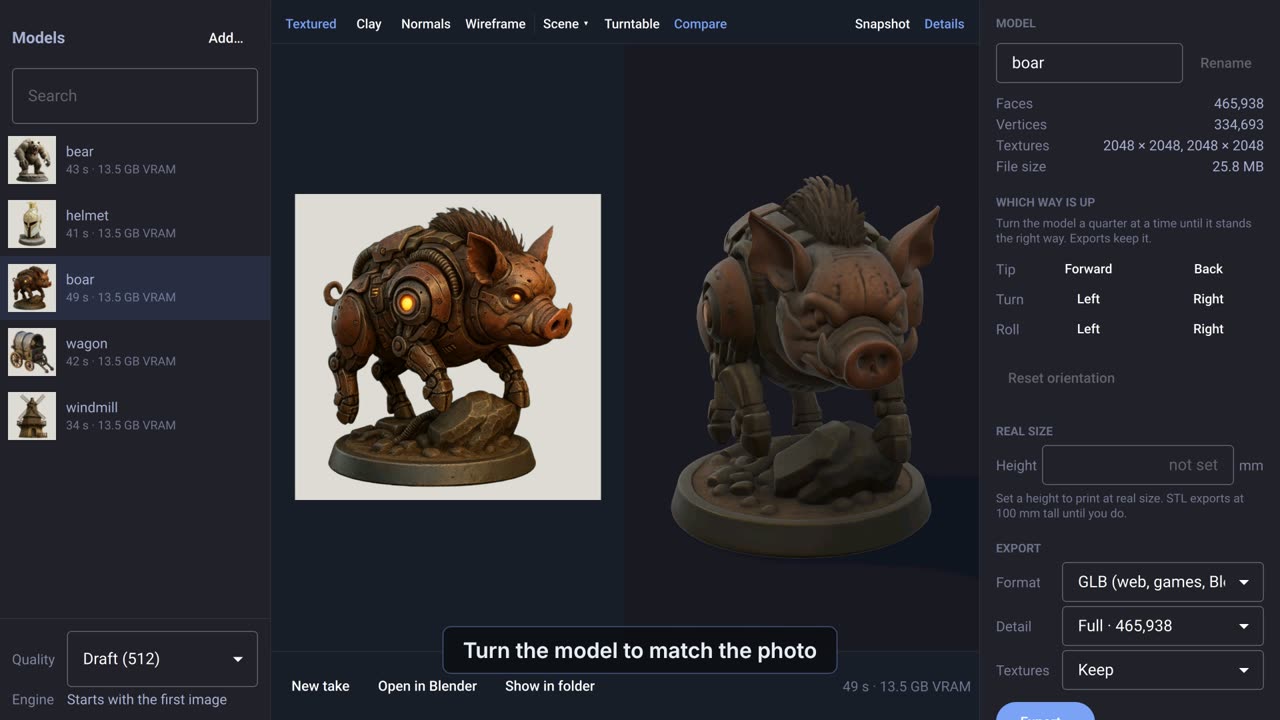 0:22
0:22Put the photo beside the model to check it, and save the view as a PNG.
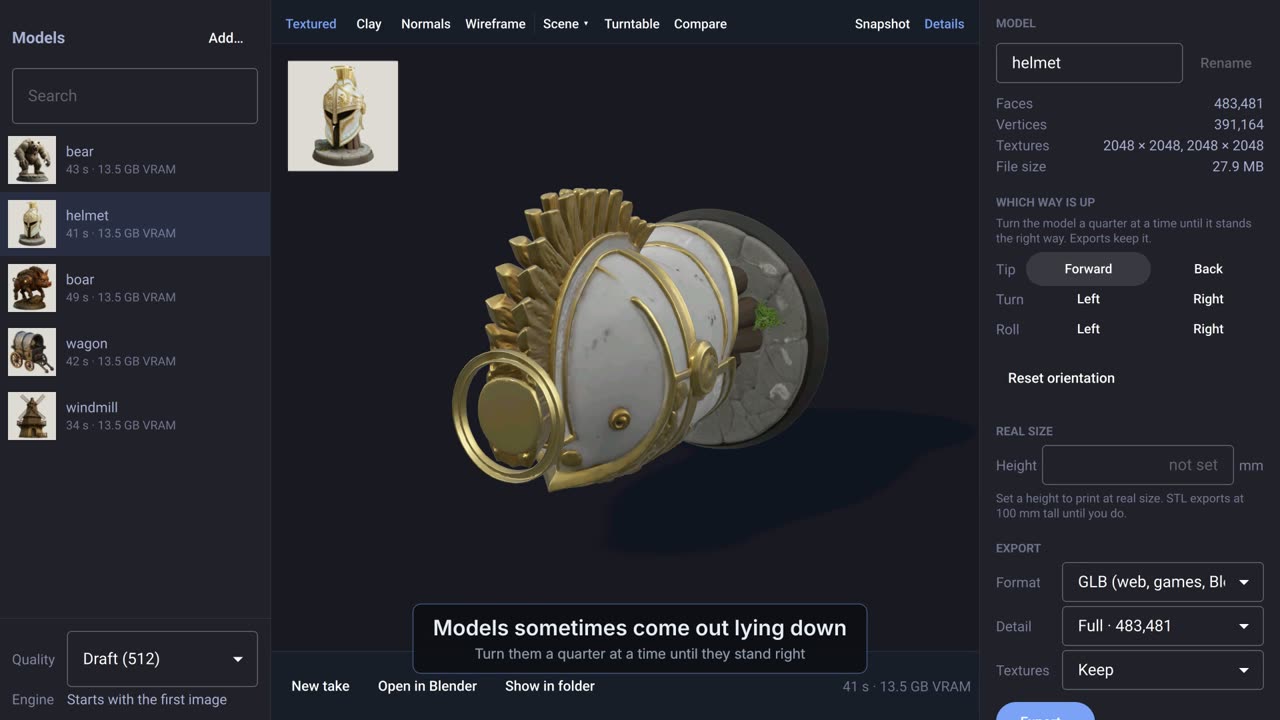 0:27
0:27What the model is made of, turning it the right way up, and setting its real height for printing.
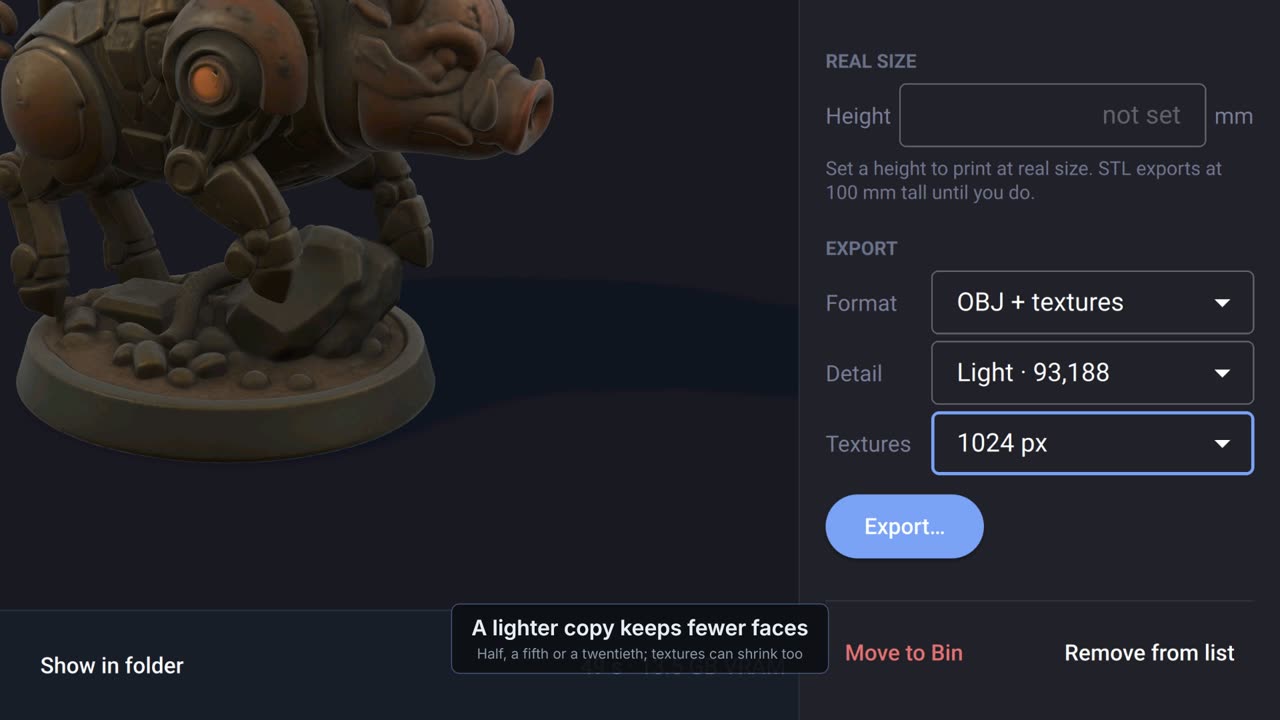 0:39
0:39Save the model as GLB, OBJ or STL, full or as a lighter copy, or open it straight in Blender.
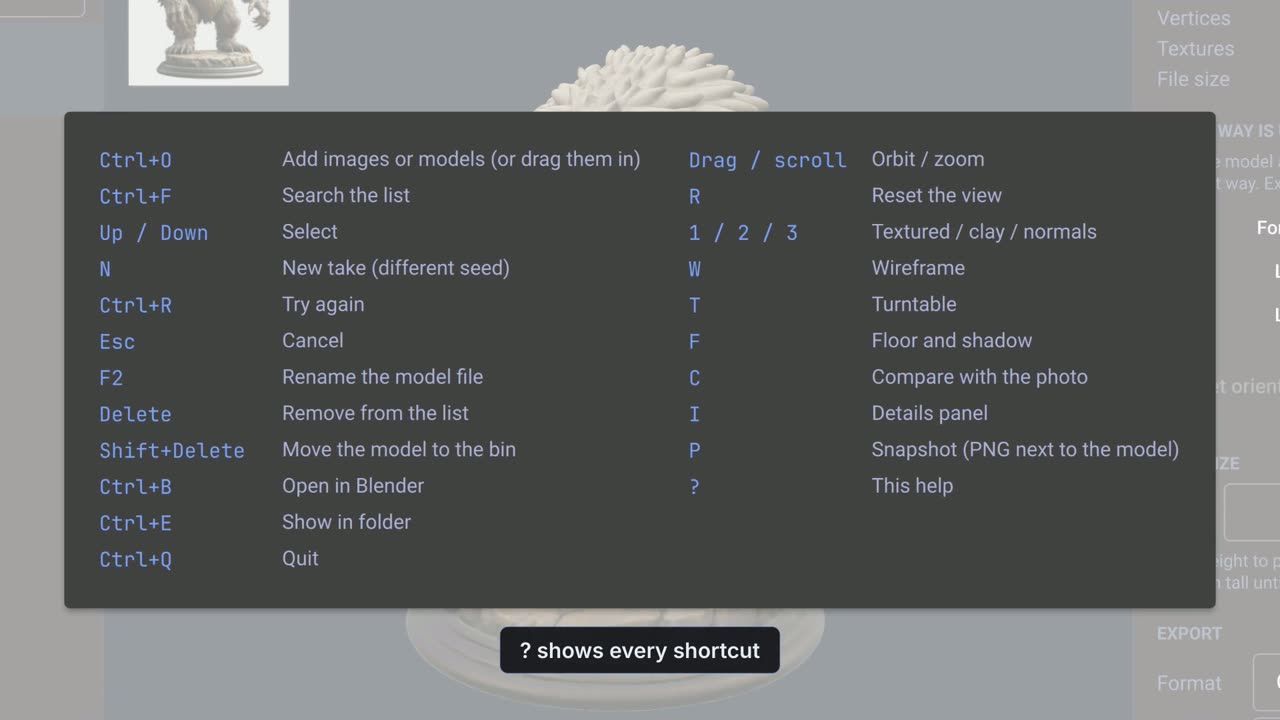 0:26
0:26Every shortcut, and the single keys that change the view.
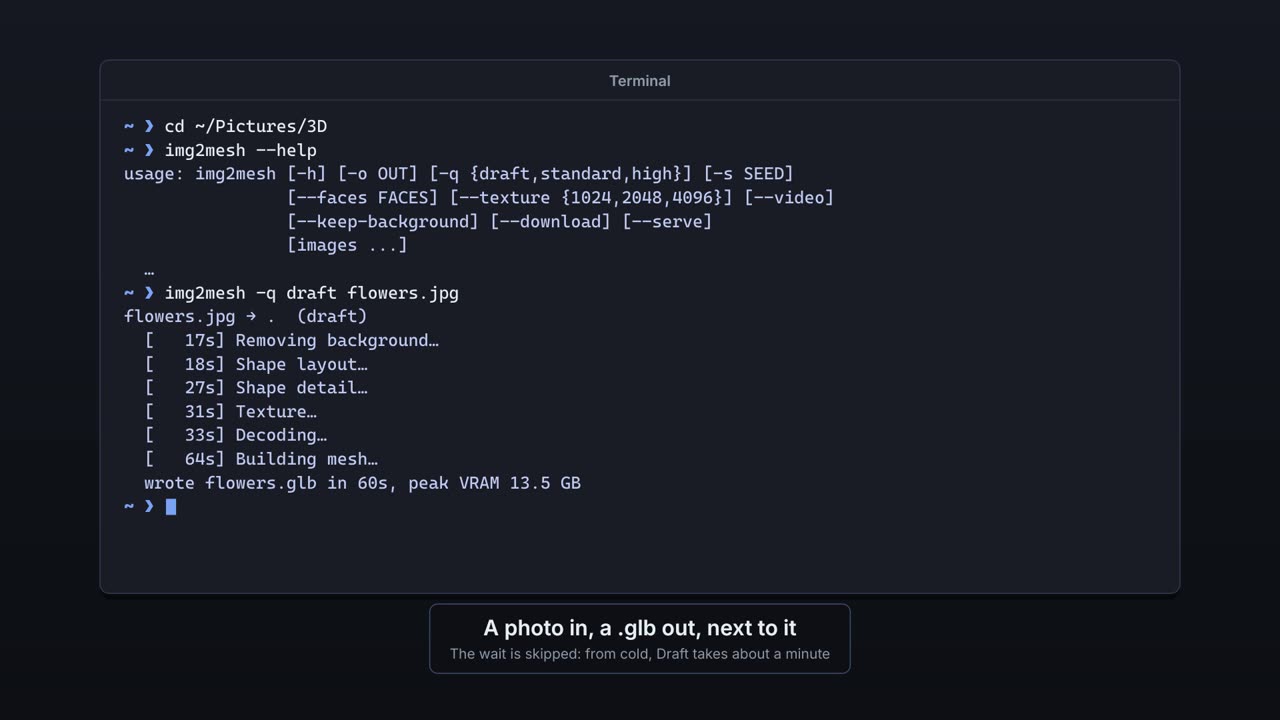 0:29
0:29img2mesh is the engine on its own: photos in, models out, with no window.