Installing Omanta
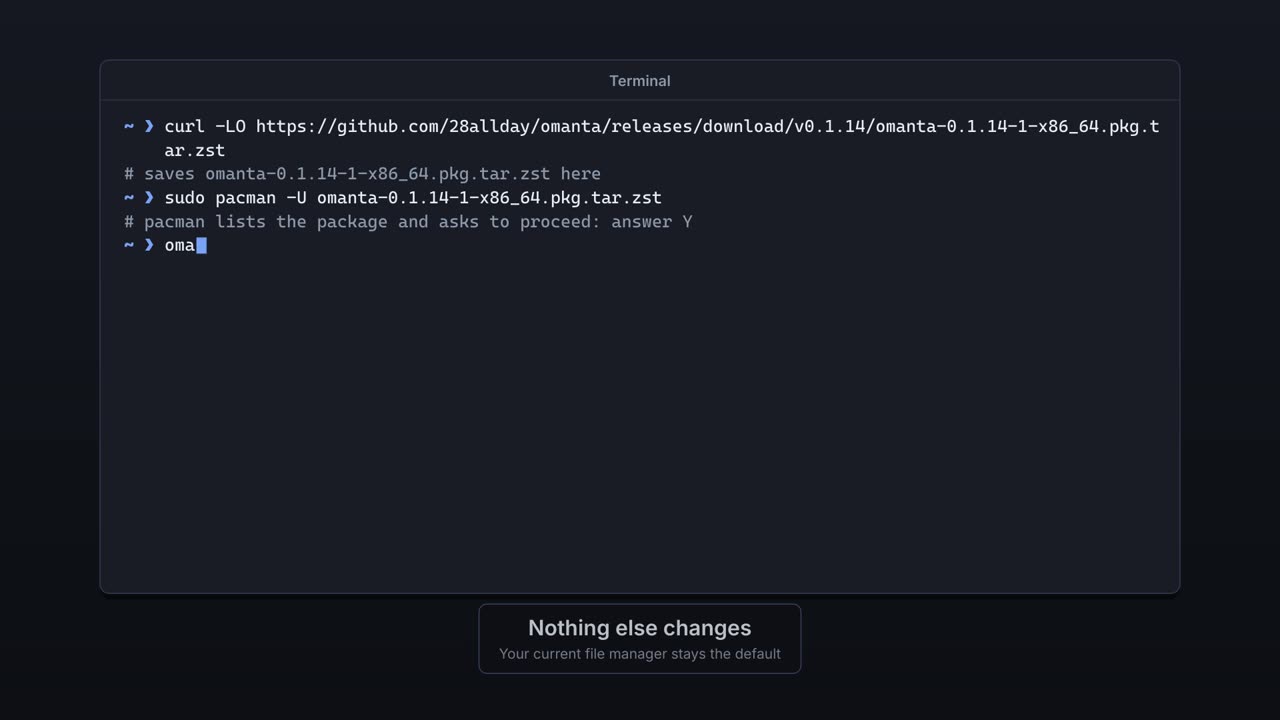
The install steps and the latest release are on GitHub. Nothing else on your desktop changes.
Omanta is a file manager for Omarchy, in the window called Files. Each part of it is explained below, with a short film showing it in use.
 0:25
0:25The install steps and the latest release are on GitHub. Nothing else on your desktop changes.
 0:25
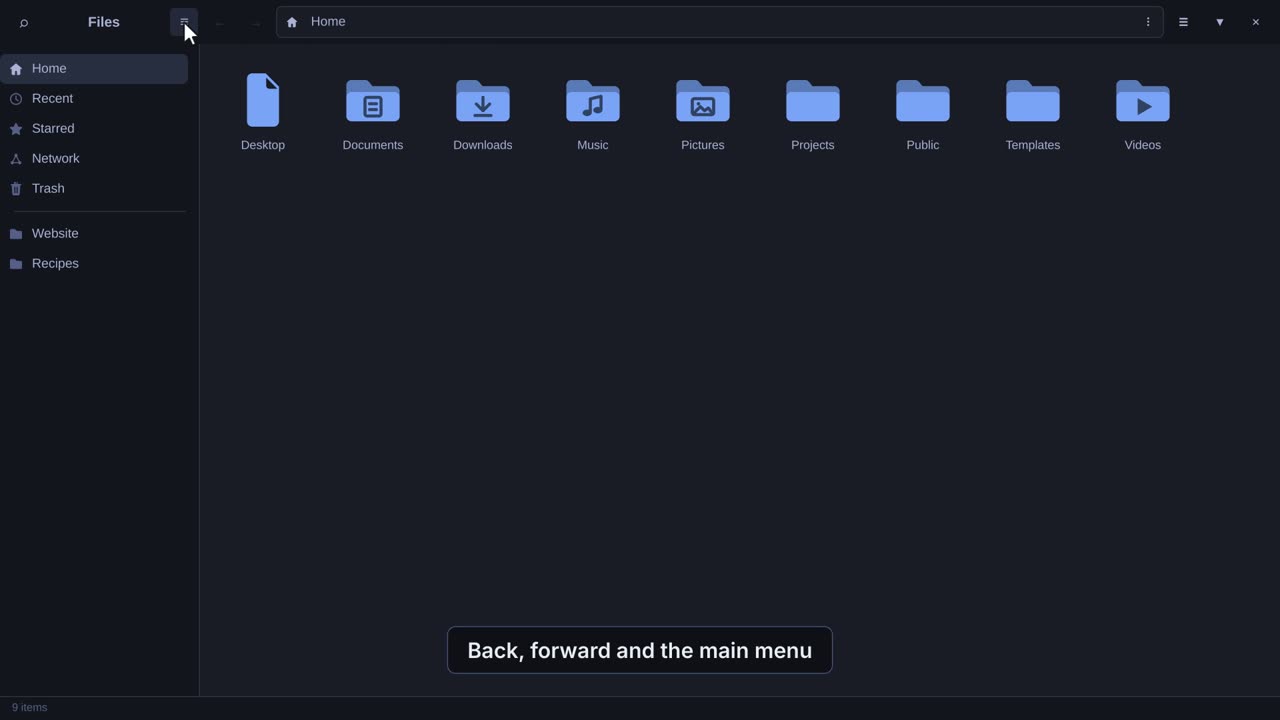
0:25The sidebar, the path bar, the buttons along the top and the status bar.
 0:22
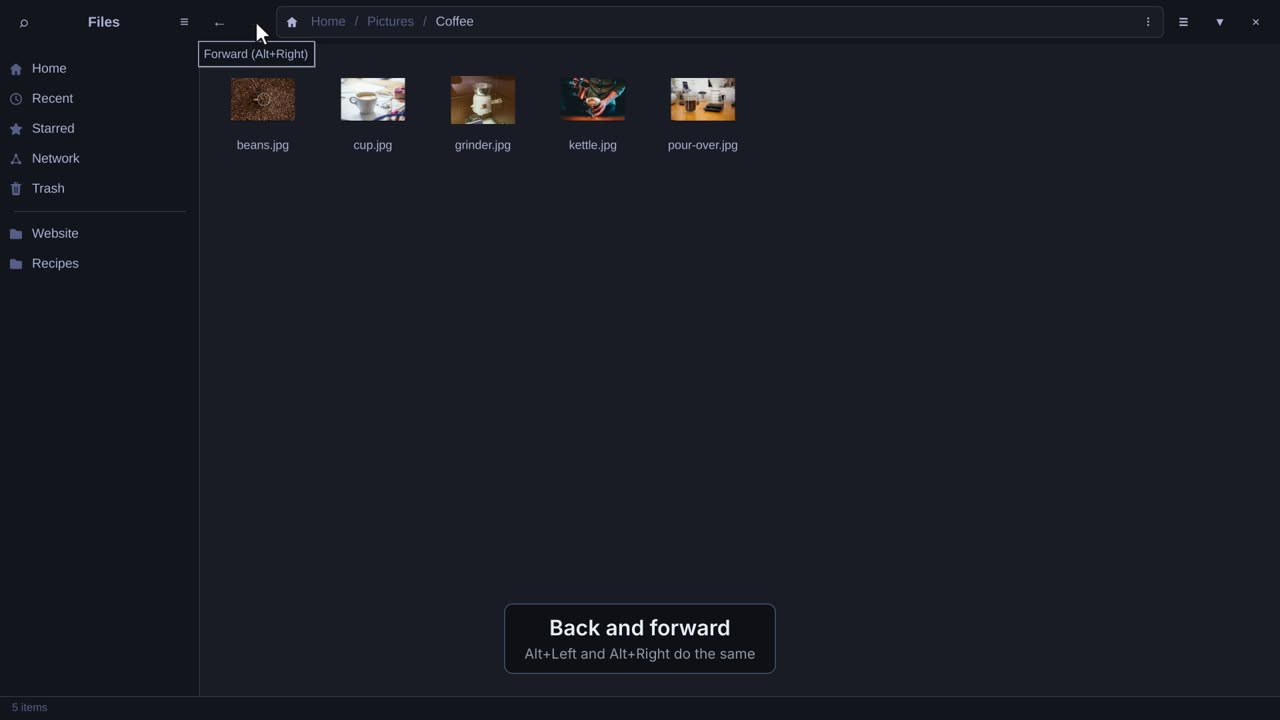
0:22Open folders, go back and forward, jump along the path or type where you want to go.
 0:32
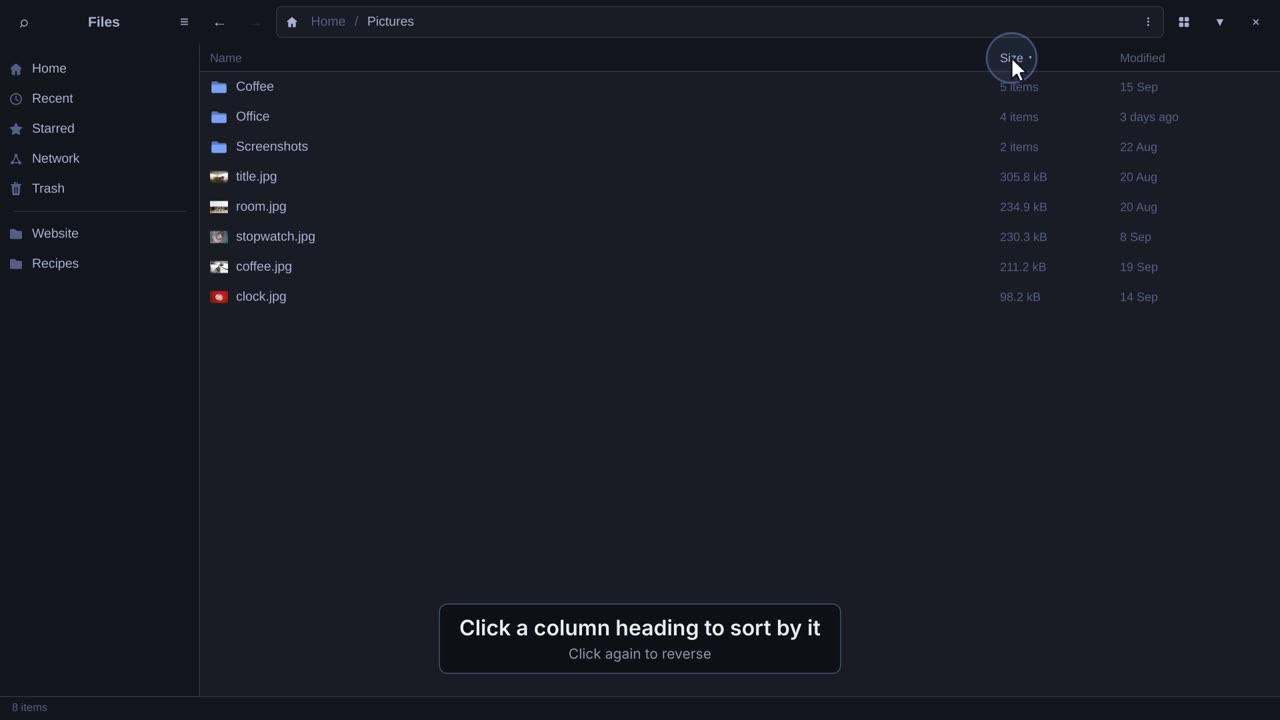
0:32Icons or a list, bigger or smaller, sorted however you like.
 0:25
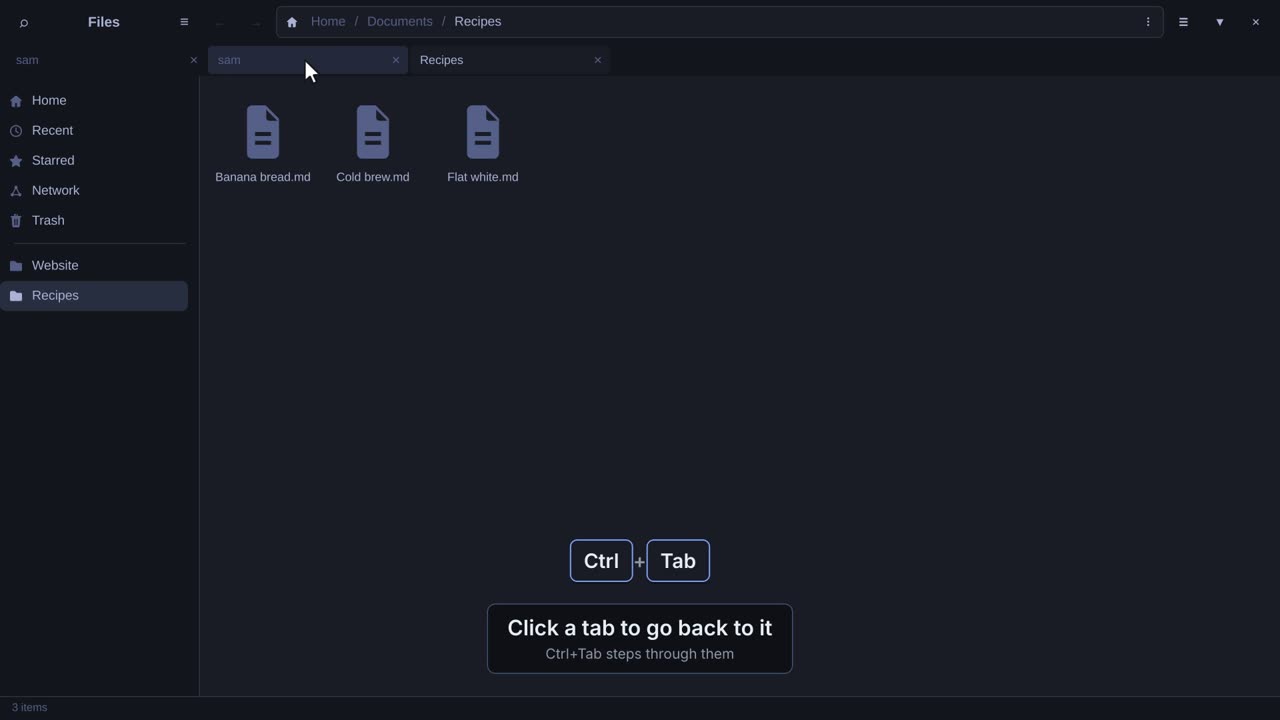
0:25Several folders in one window, or two side by side.
 0:37
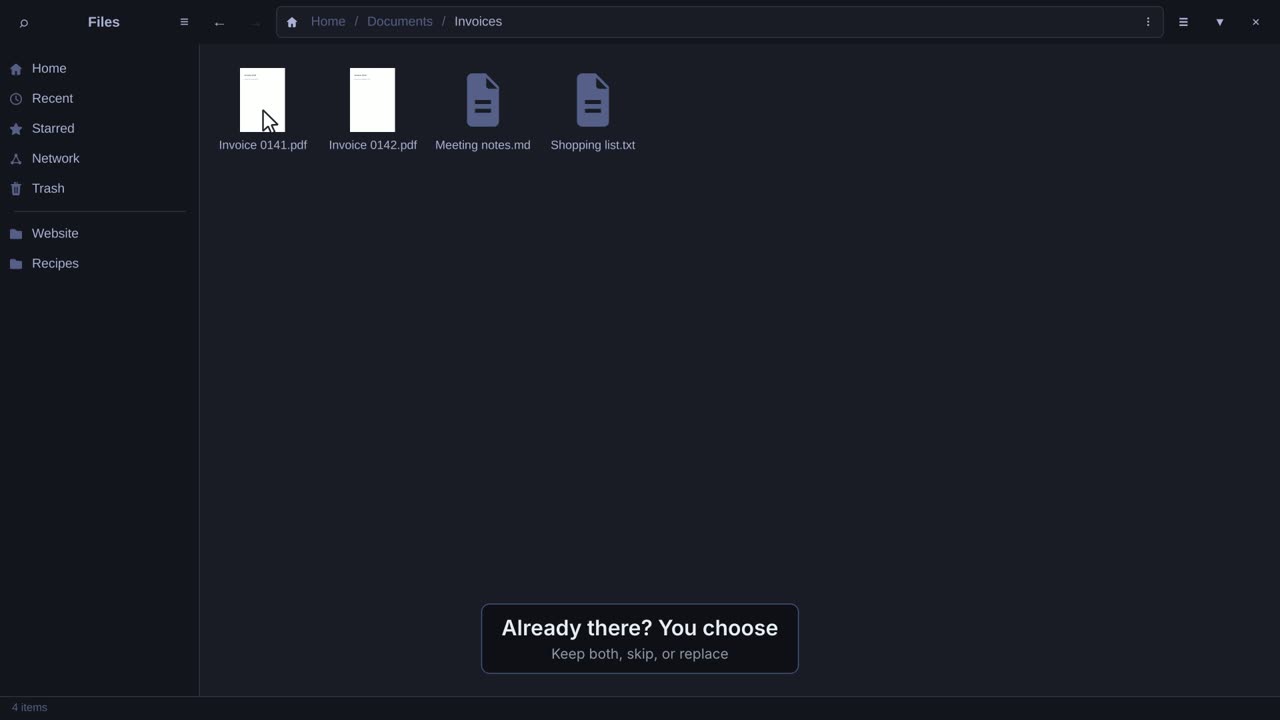
0:37Select, copy, paste and drag files, and make new folders.
 0:31
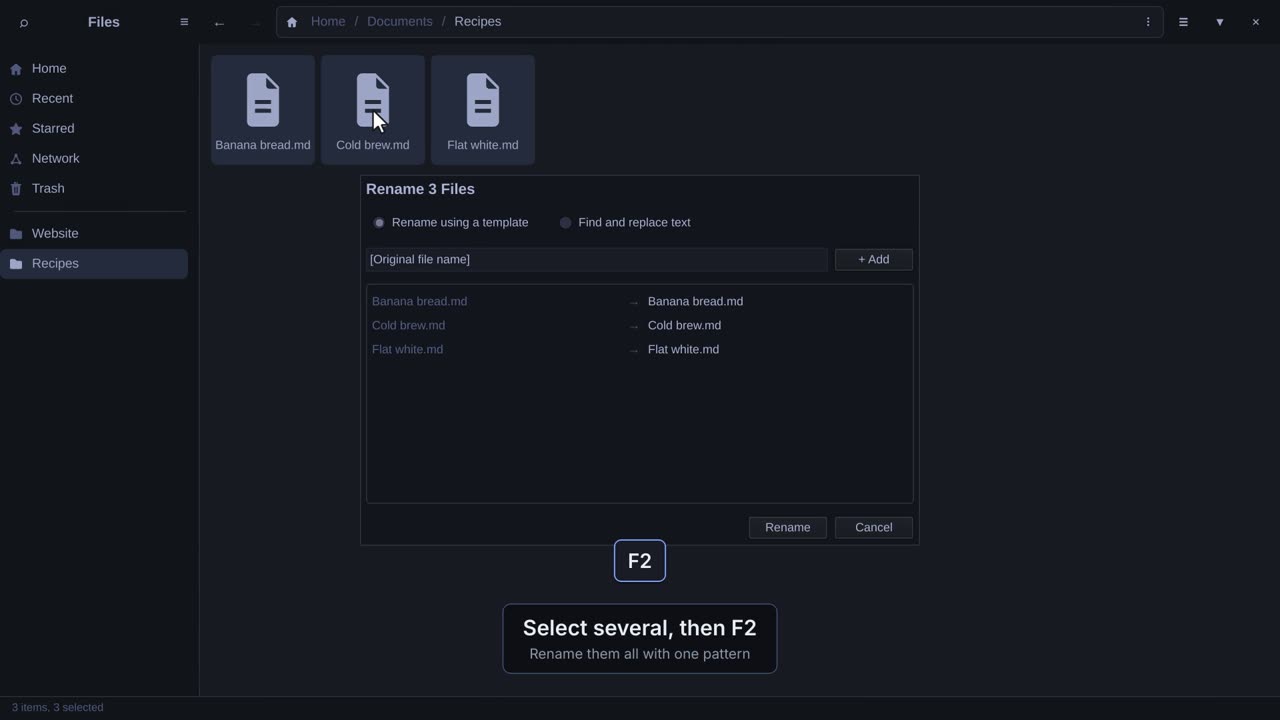
0:31Rename one file, or a whole batch with a pattern.
 0:35
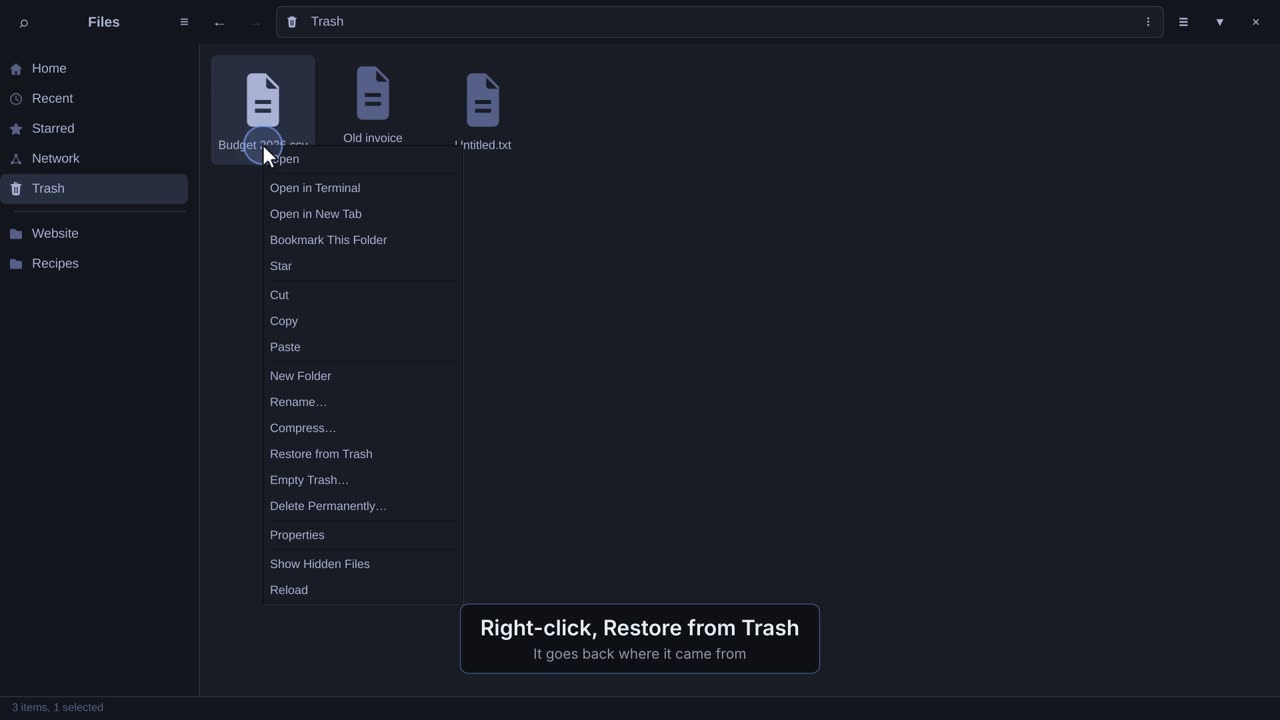
0:35Delete to the Trash, bring things back, and empty the Trash when you're sure.
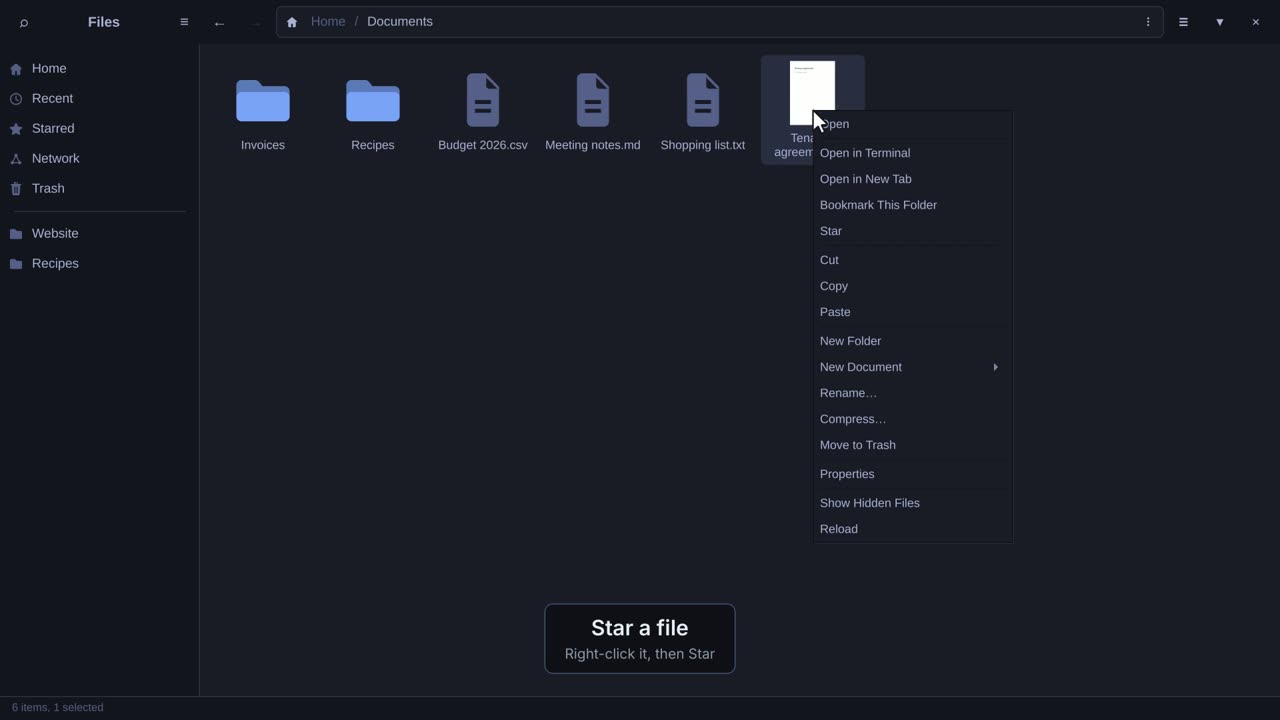 0:30
0:30Recent, Starred, bookmarks and drives: the sidebar, and how to make it yours.
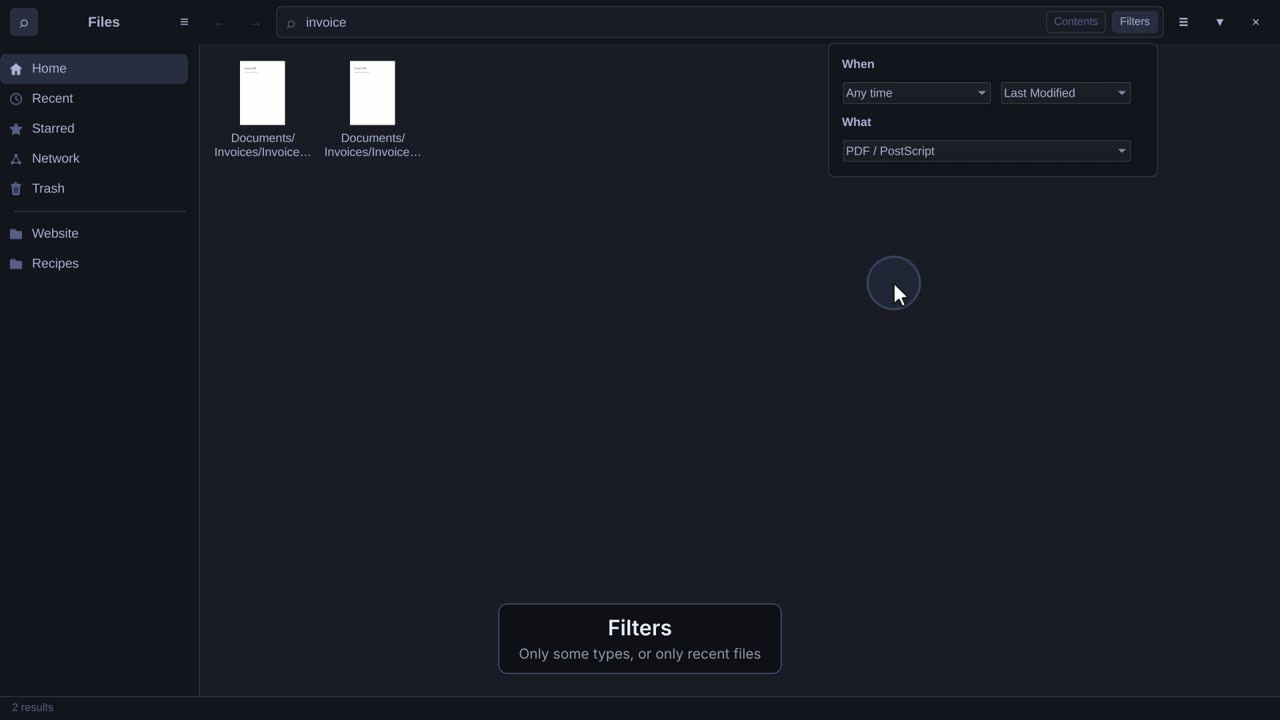 0:26
0:26Find files by name or by what's inside them, filtered by date and type.
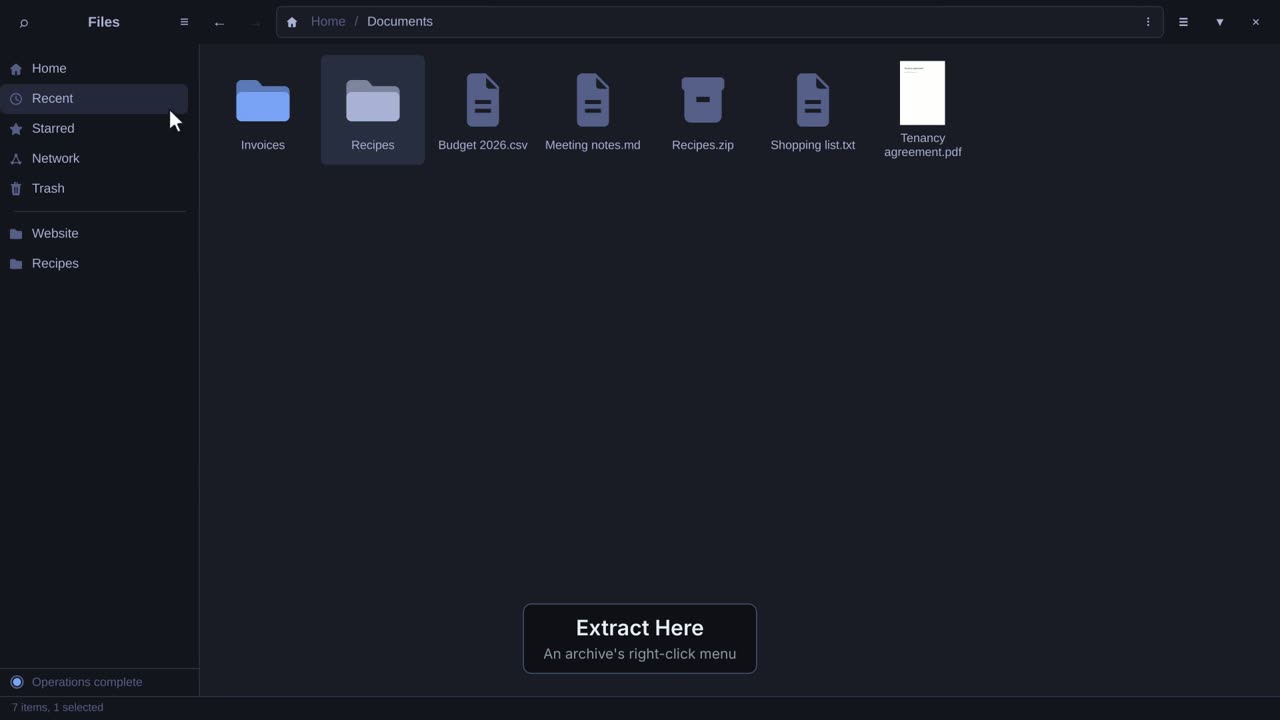 0:36
0:36Make zip, tar.xz and 7z archives, with or without a password, and unpack them.
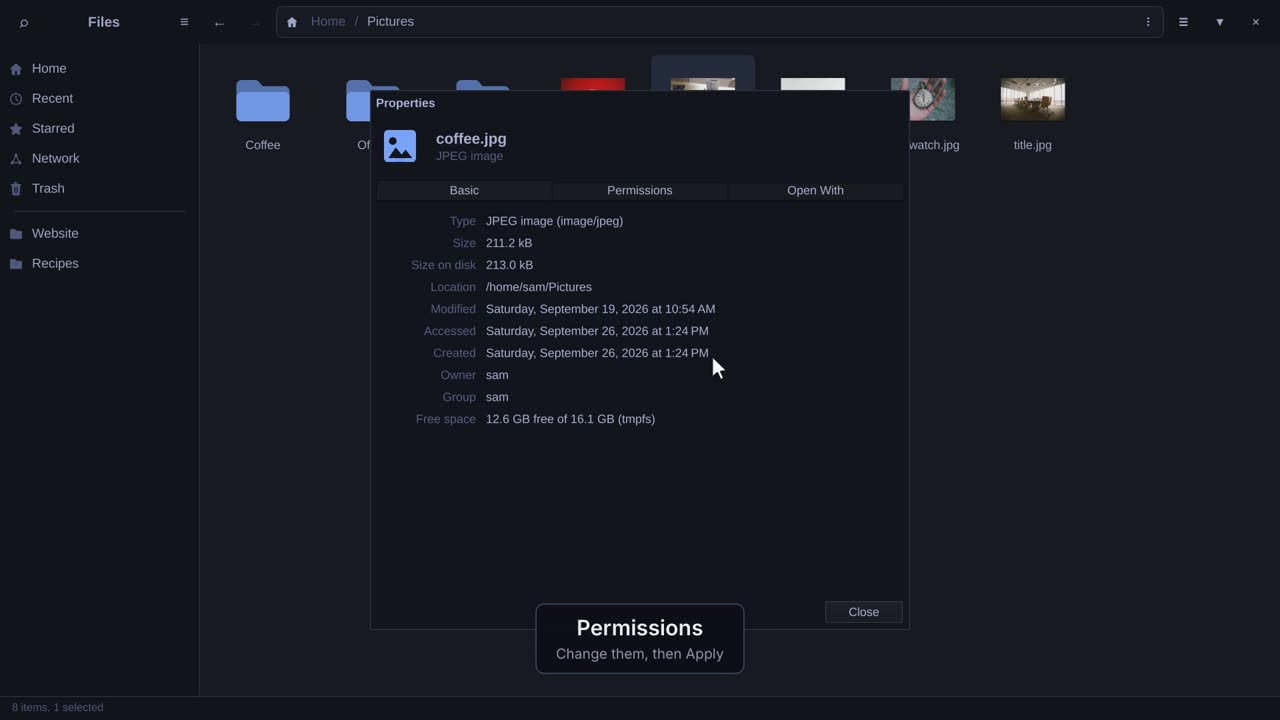 0:23
0:23Sizes, dates, permissions, and the app that opens a file.
 0:18
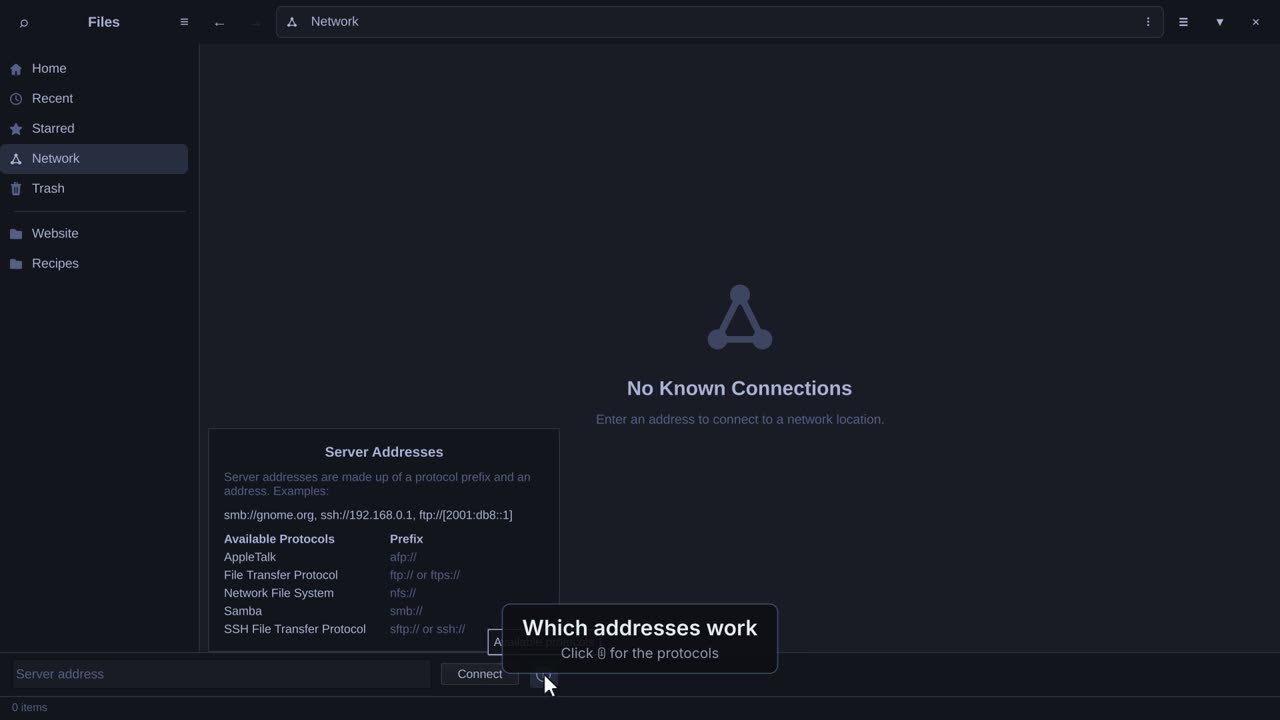
0:18Connect to shares and servers over SMB, SFTP, FTP, WebDAV and NFS.
 0:21
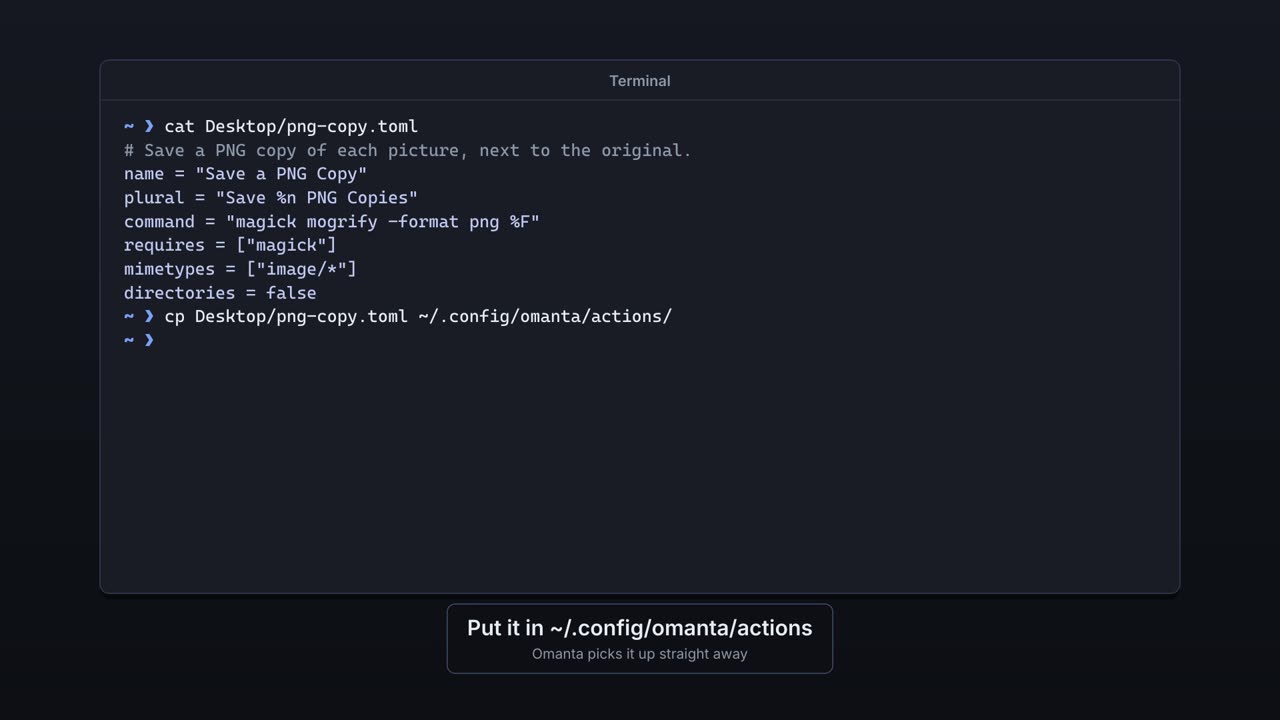
0:21Add any command to the right-click menu with a small text file.
 0:27
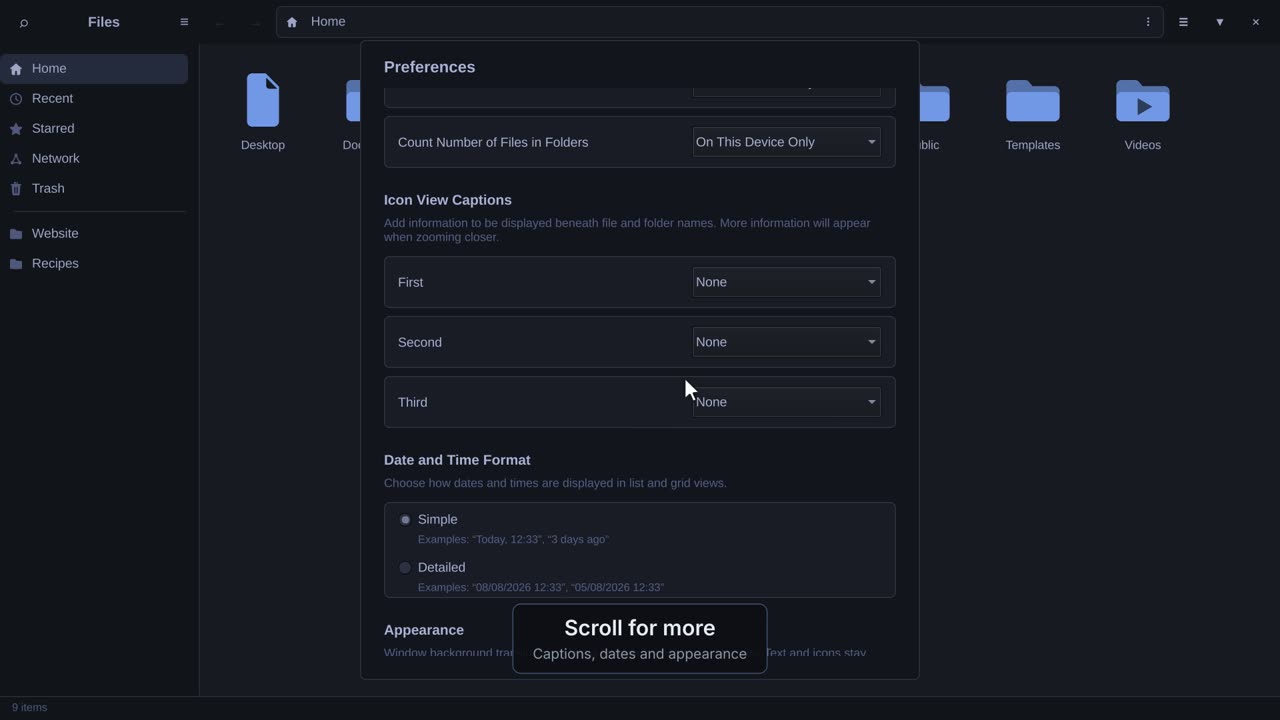
0:27Clicks, thumbnails, captions, dates and window translucency.
 0:21
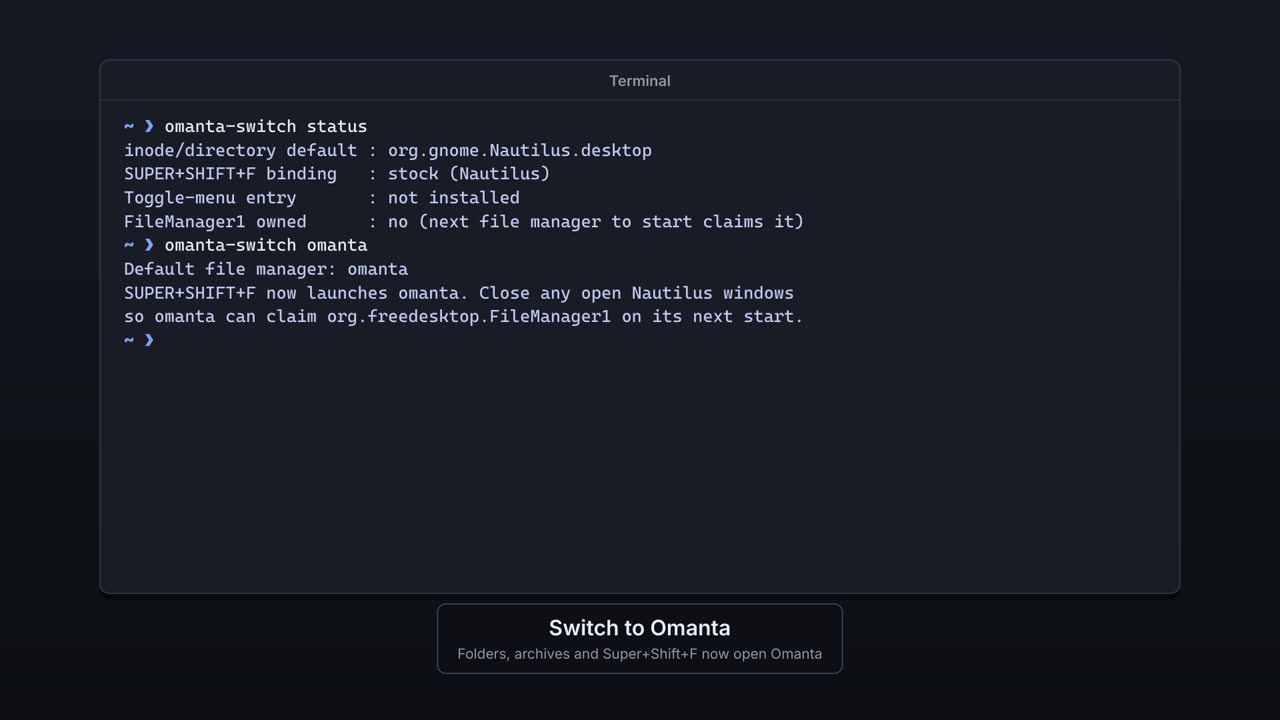
0:21Try Omanta alongside Nautilus, and switch the whole desktop over when you're ready.
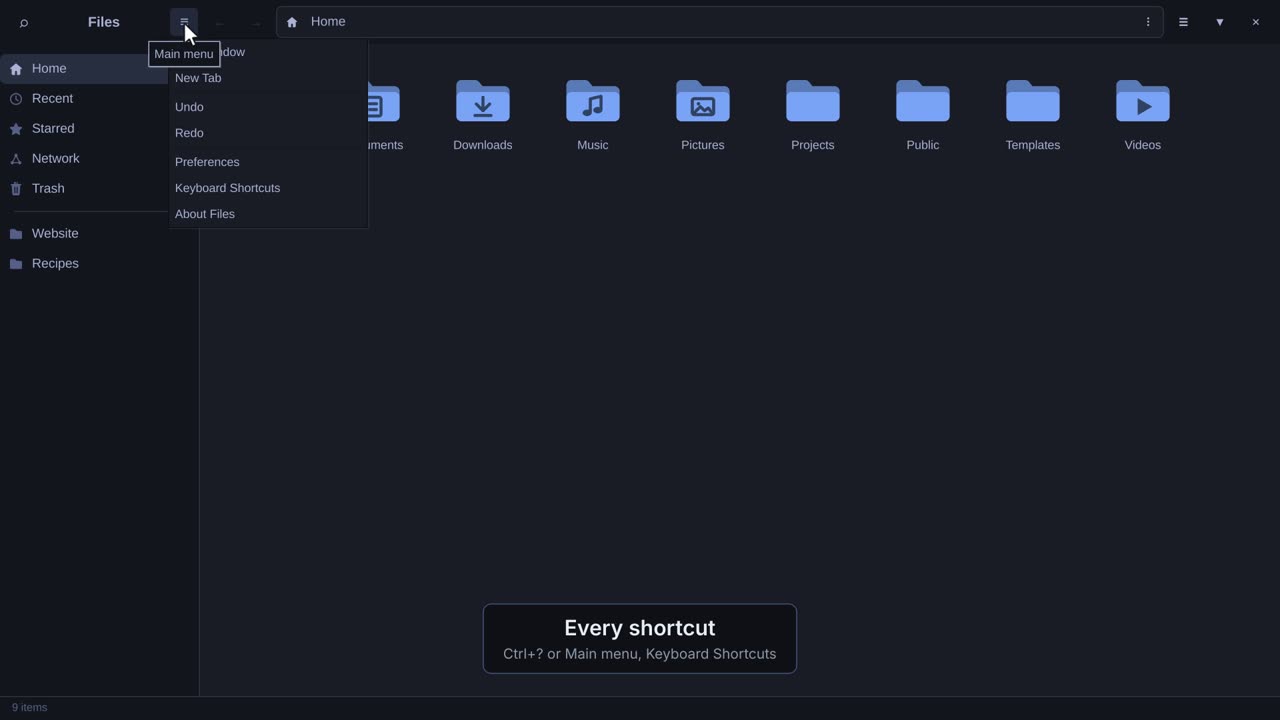 0:21
0:21Tooltips, every keyboard shortcut, and the version you have.